> For the complete documentation index, see [llms.txt](https://docs.photoroom.com/llms.txt). Markdown versions of documentation pages are available by appending `.md` to page URLs; this page is available as [Markdown](https://docs.photoroom.com/tutorials/how-to-create-food-delivery-images-with-consistent-brand-guidelines.md).
# How to create food delivery images with consistent brand guidelines
In this tutorial you will find the details of how the [Image Editing API](/image-editing-api-plus-plan/quickstart-guide.md) enables you to edit food images so that their look-and-feel is consistent across your entire delivery app.
## Introduction
If you’re running a food delivery app, you know how important it is to have food images that follow the same brand guidelines, so that the look-and-feel is consistent from one image to the next.
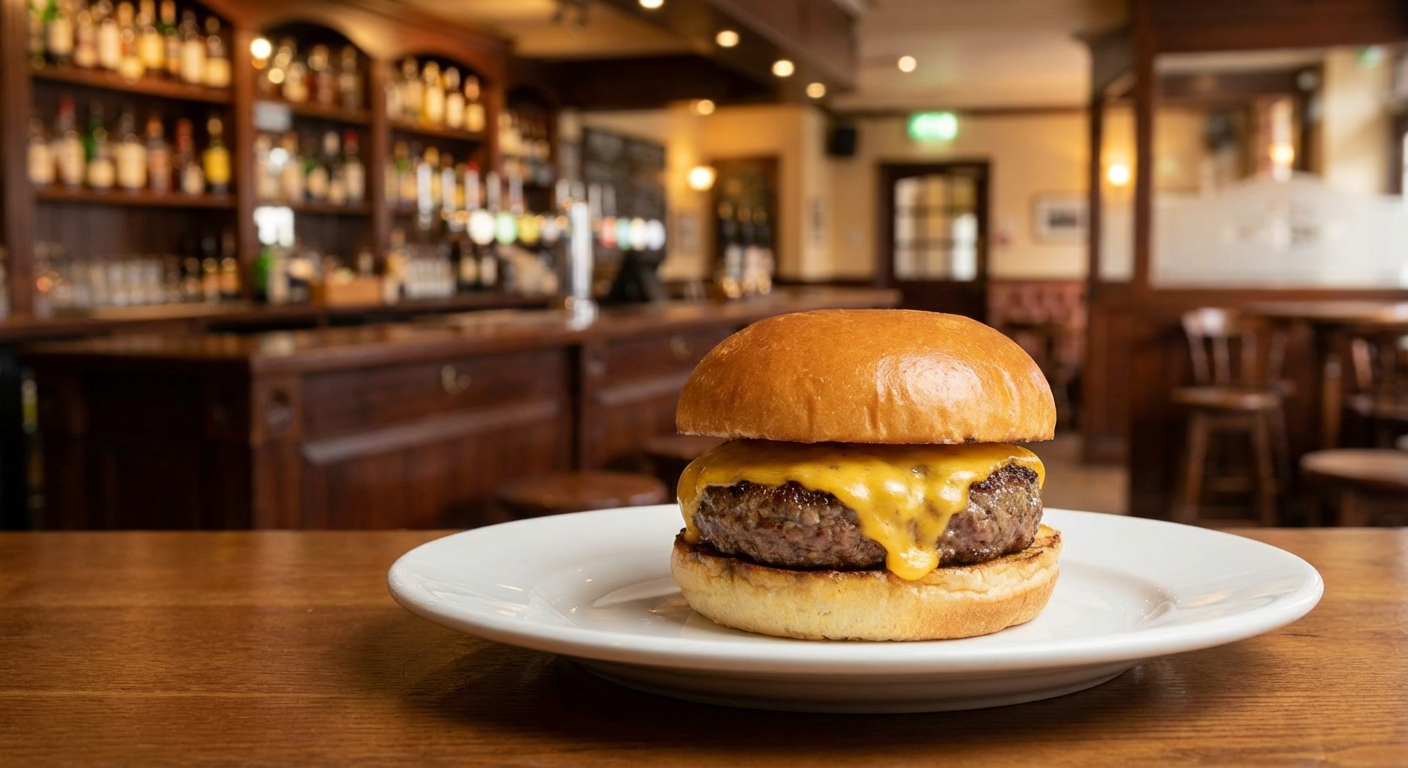
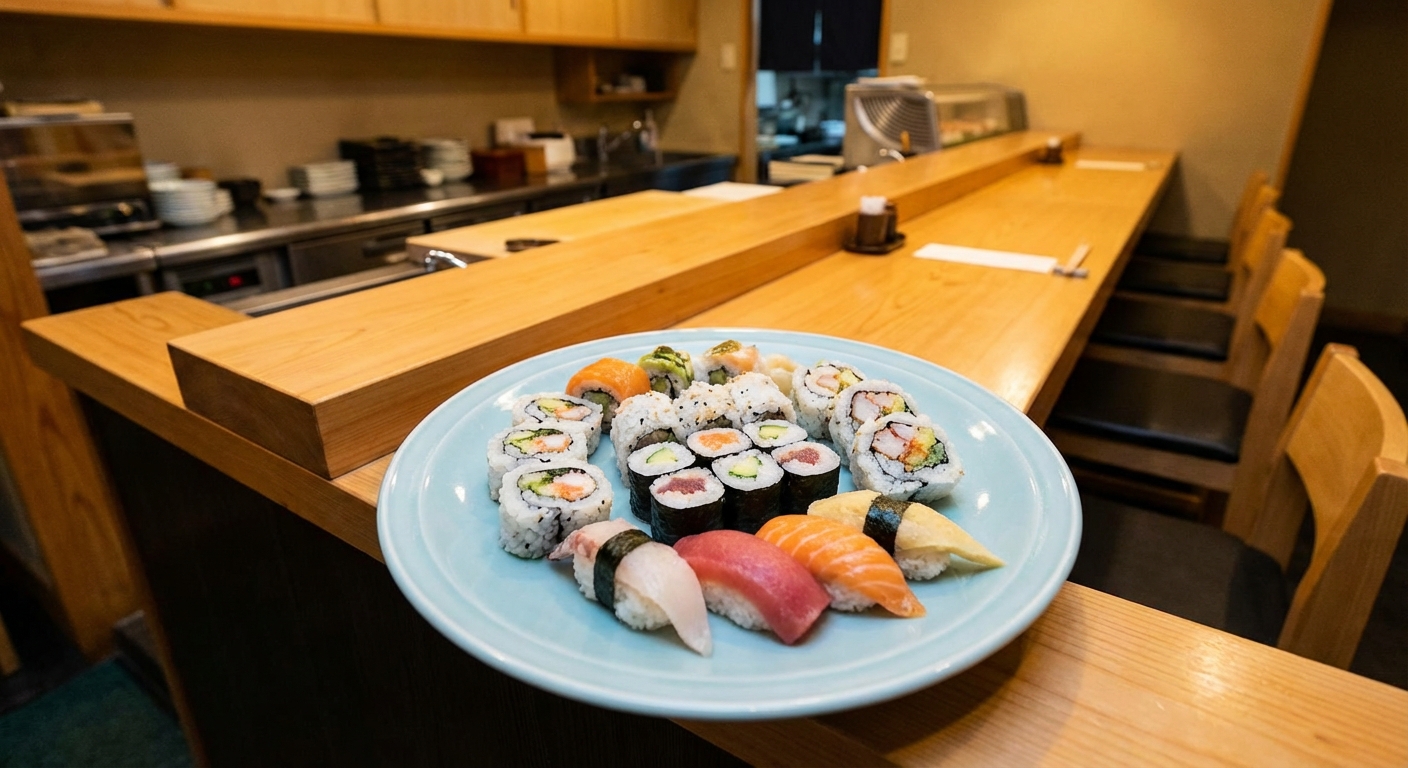
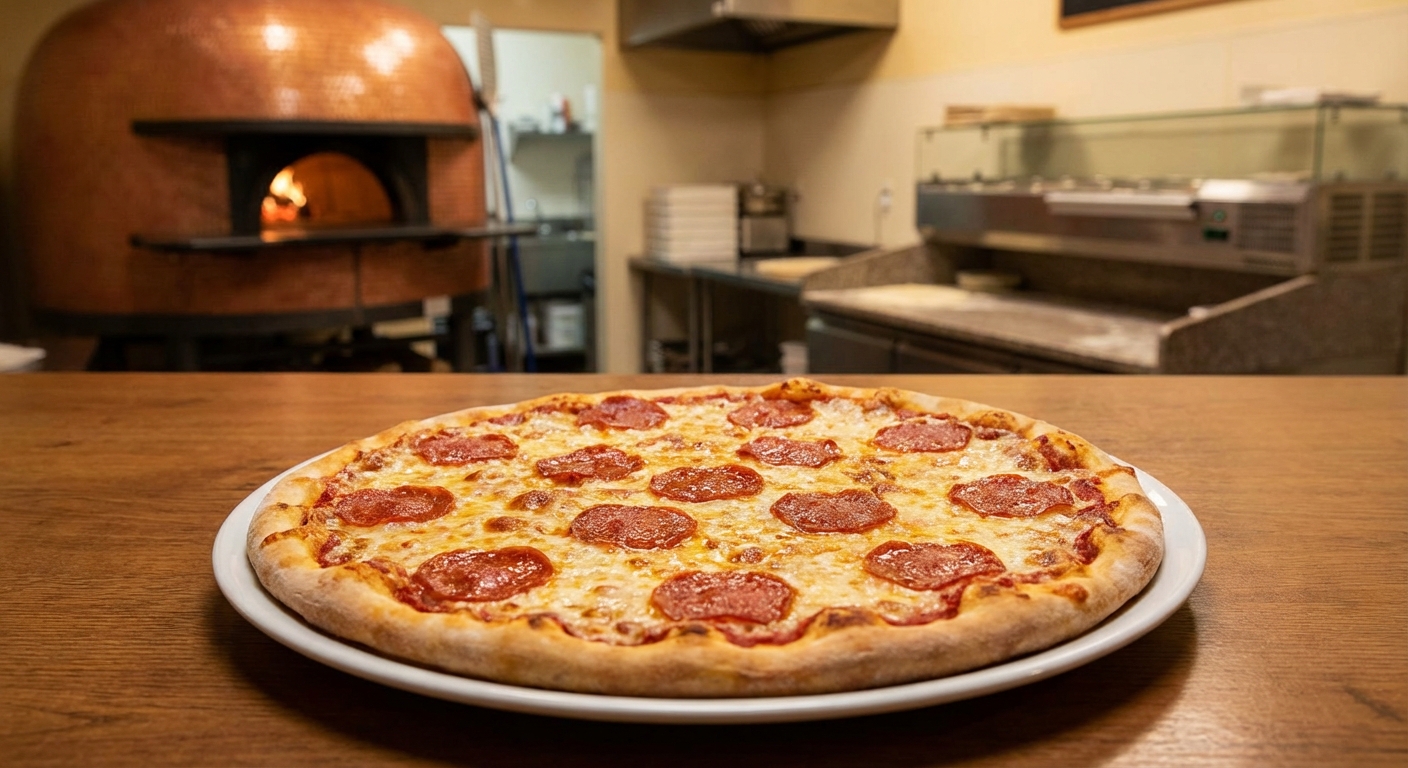
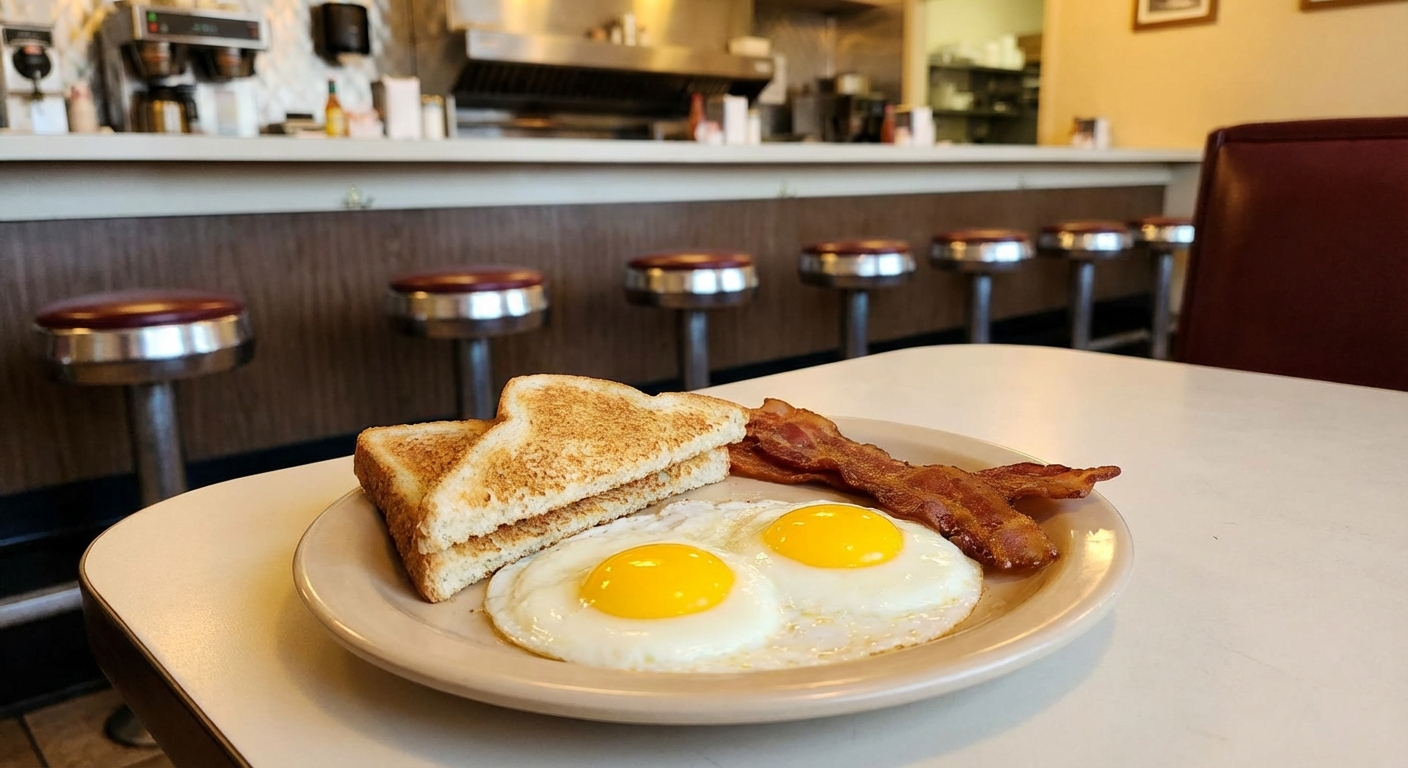
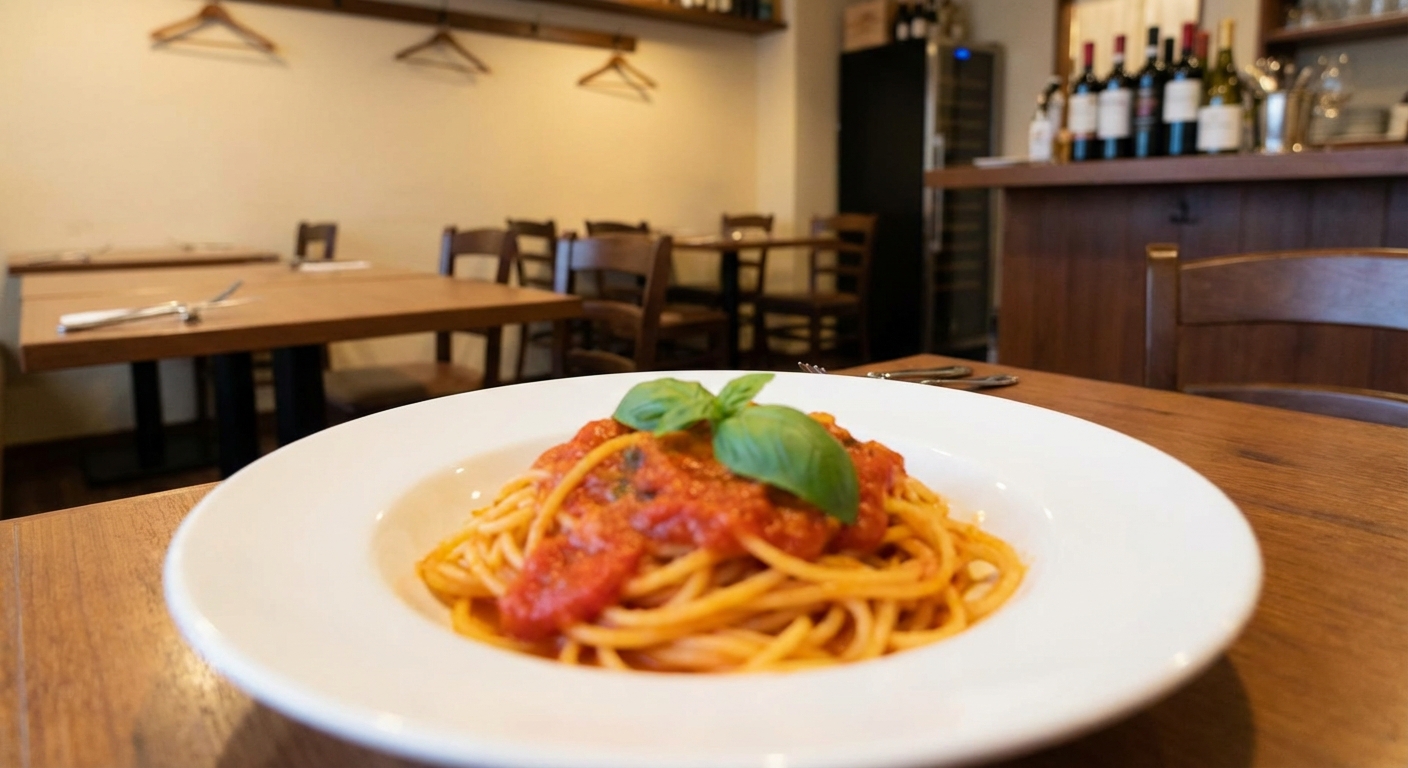
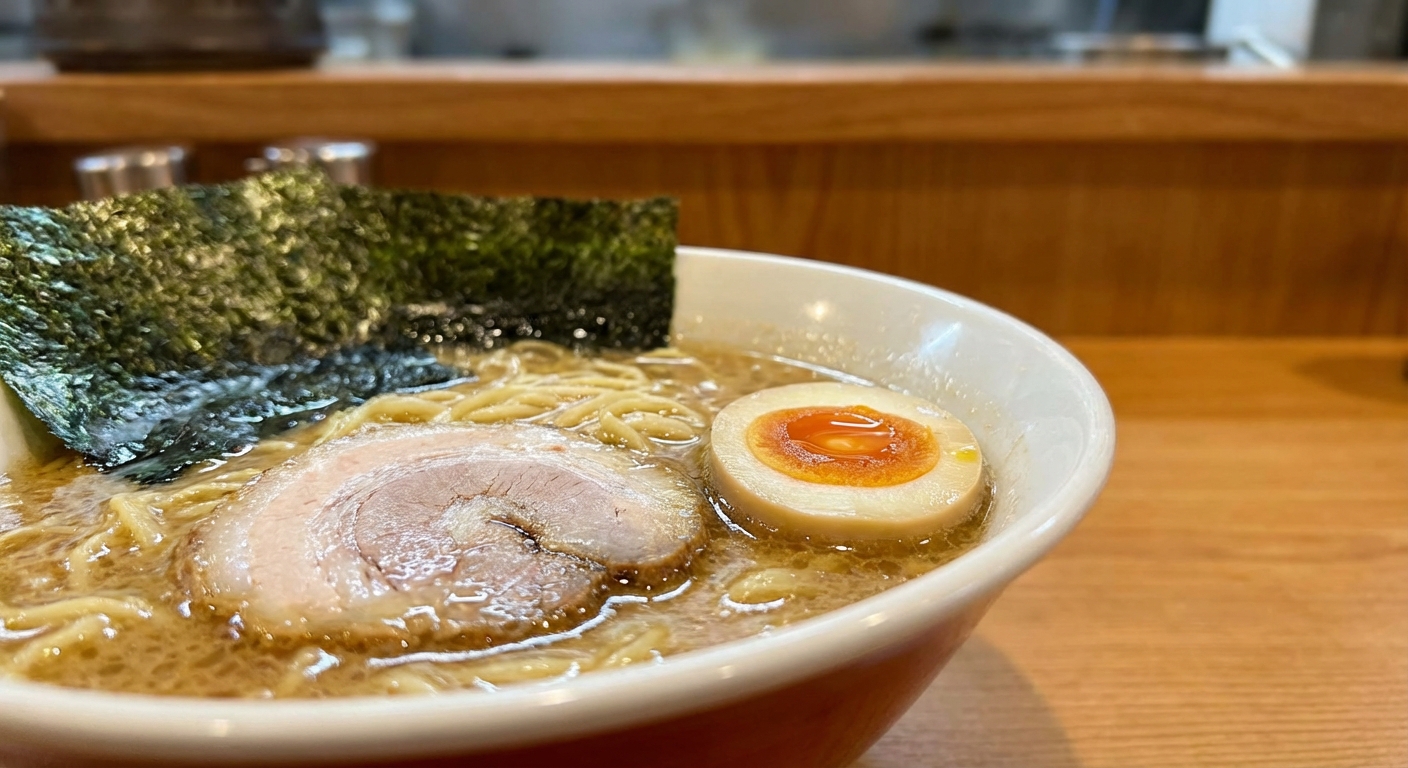
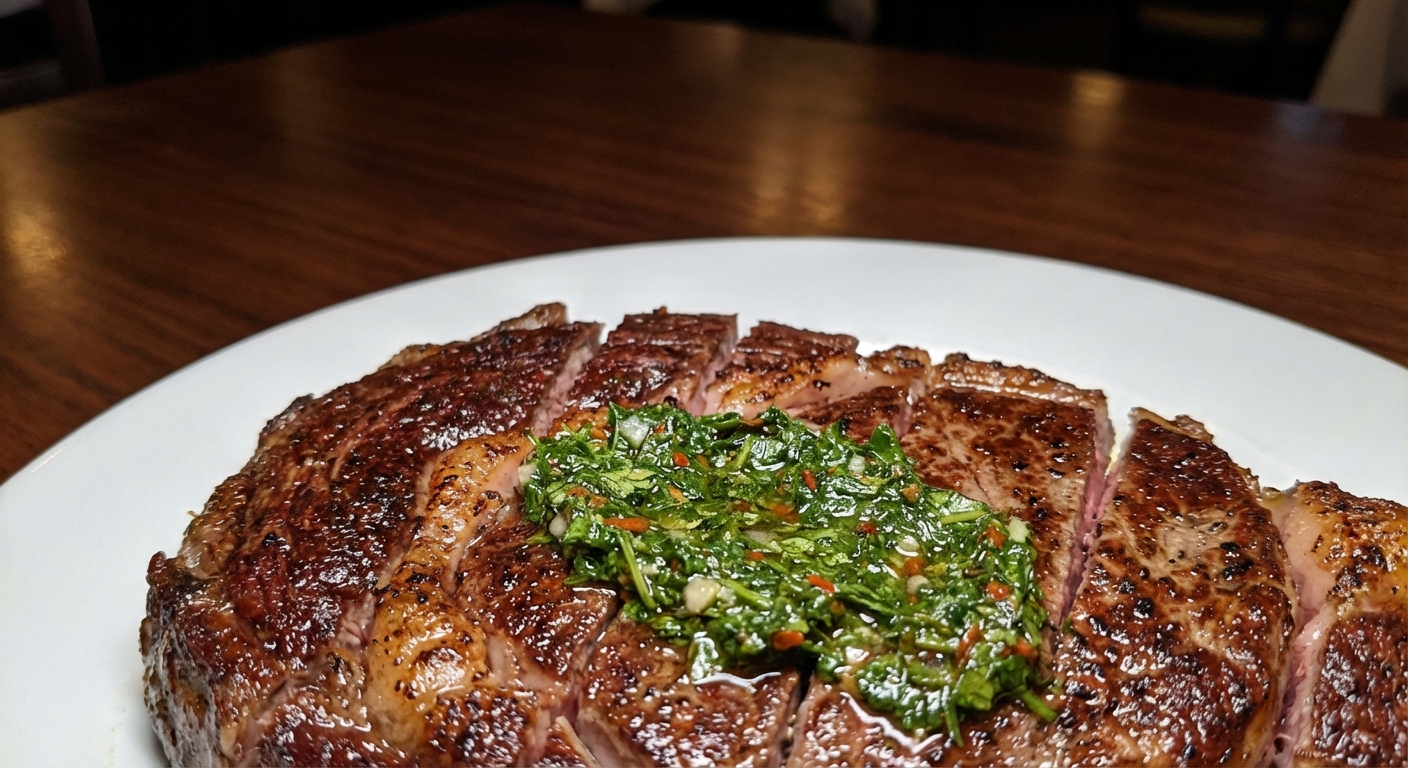
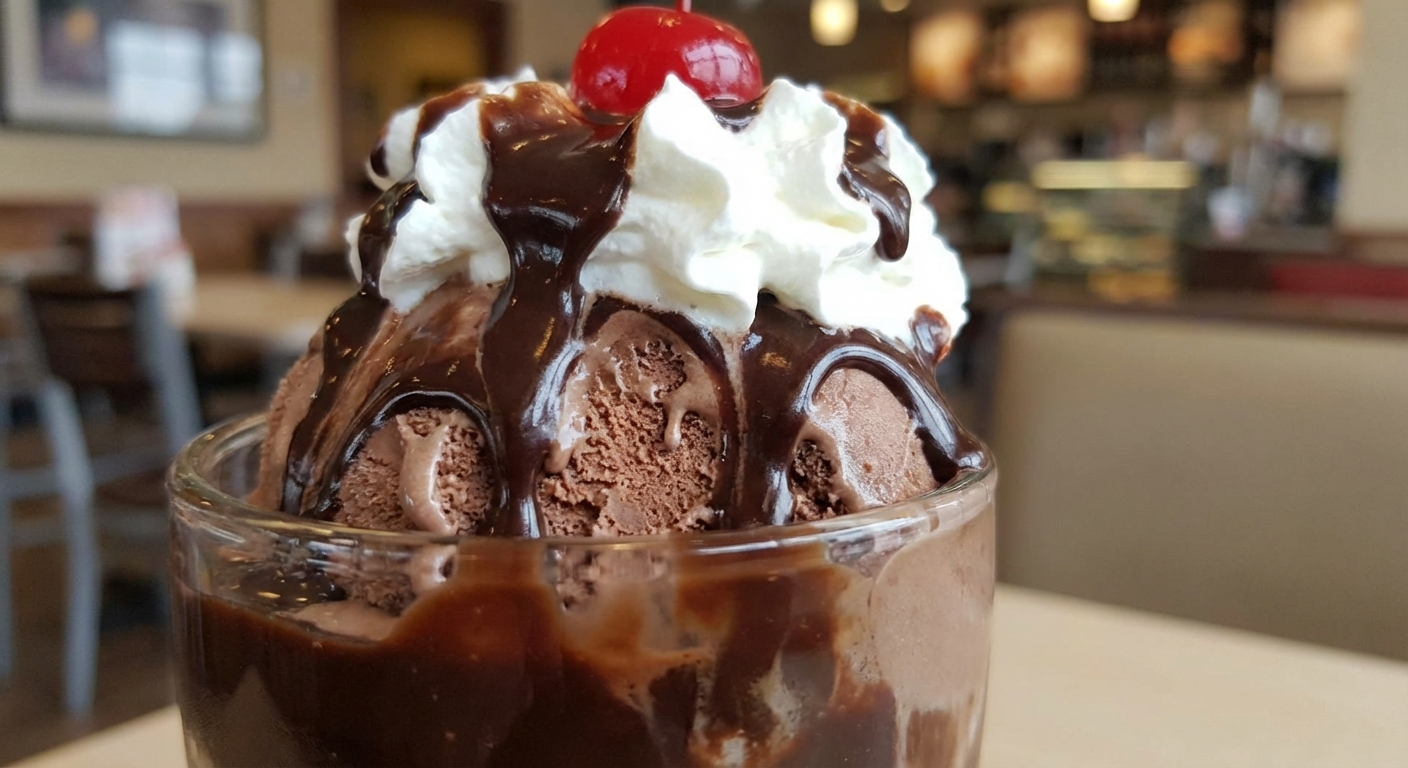
But if you're getting your images from different restaurant owners, it's very likely that the images you receive have been taken at very different angles, with distracting backgrounds and sometimes without having the full dish in view:
However what you want is to have all your images follow the same brand guidelines, such as:
* 2000x2000 pixels
* white background
* dish is centered, with 10% of padding
* realistic shadow
* no cropped dish (including plates)
So let's go over how we can implement these guidelines using the [Image Editing API](/image-editing-api-plus-plan/quickstart-guide.md).
## Implementation
### Output Size
Let's start by making sure that the result images all have the same resolution.
We can configure this resolution through the parameter `outputSize`, by setting its value to `2000x2000`.
### Centering + Padding
By default, the [Image Editing API](/image-editing-api-plus-plan/quickstart-guide.md) will automatically center the dish in the result image.
But we also need to configure the [positionning of the dish](/image-editing-api-plus-plan/positioning.md), so that there's 10% of padding between the dish and the edges of the result image.
For this, we'll set the parameter `padding` to the value `10%`.
### White Background
By default, the [Image Editing API](/image-editing-api-plus-plan/quickstart-guide.md) will remove the background of the input image, so there's no need to set a specific argument for it to happen.
However, we do need to specify that we want to result image to be on a white background.
To achieve this, we'll use the parameter `background.color` which allows us to [replace the background with a solid color](/image-editing-api-plus-plan/static-background.md#solid-color) and set its value to `white`.
### Realistic Shadow
Next we want to add a realistic shadow to the dish, so that it blends nicely with its new background.
The [Image Editing API](/image-editing-api-plus-plan/quickstart-guide.md) offers a feature called [AI Shadows](/image-editing-api-plus-plan/ai-shadows.md) that allows you to add a realistic shadow around the main subject of the input image.
To add an AI Shadow with a soft shadow preset to the dish, set the parameter `shadow.mode` to the value `ai.soft`.
{% hint style="info" %}
Additional shadow presets are available, more details can be found in the [documentation of AI Shadows](/image-editing-api-plus-plan/ai-shadows.md).
{% endhint %}
### No Cropped Dish
Finally, we need to make sure that if the dish (or its plate) has been cropped in the original image, it is uncropped in the result image.
For this we'll use the feature [AI Uncrop](/image-editing-api-plus-plan/ai-uncrop.md) of the [Image Editing API](/image-editing-api-plus-plan/quickstart-guide.md).
To use uncrop the dish if needed, set the parameter `uncrop.mode` to the value `ai.auto`.
## API Call
Using the parameters `outputSize`, `background.color`, `padding`, `shadow.mode` and `uncrop.mode` we're now ready to automatically edit the product images to make them compliant with the brand guidelines.
Here's the API call we'll use:
```bash
curl --request POST \
--url https://image-api.photoroom.com/v2/edit \
--header 'x-api-key: YOUR_API_KEY_HERE' \
--form imageFile=@/path/to/image.png \
--form outputSize=2000x2000 \
--form background.color=white \
--form padding='10%' \
--form shadow.mode=ai.soft \
--form uncrop.mode=ai.auto \
--output result.png
```
Try it now!
{% hint style="info" %}
If you don't have an API key, here are the [steps to create yours](/getting-started/introduction.md#how-can-i-get-my-api-key).
{% endhint %}
## Results
Here's a before/after of the results this API call produces:
| *(original image)* | *(edited image)* |
| :-----------------------------------------------------------------------------------------------------------------------------------------------------------------------------------------------------------------------: | :----------------------------------------------------------------------------------------------------------------------------------------------------------------------------------------------------------------------: |
|  |  |
|  |  |
|  |  |
|  |  |
|  |  |
|  |  |
|  |  |
|  |  |
## Conclusion
The [Image Editing API](/image-editing-api-plus-plan/quickstart-guide.md) allows you to easily edit food images so that they become compliant with your brand guidelines, enabling you to have a consistent look-and-feel across your entire food delivery app.
If you want to learn more, here's the details of the API features used in this tutorial:
* [Output Size](/image-editing-api-plus-plan/output-size.md)
* [Solid Color Background](/image-editing-api-plus-plan/static-background.md#solid-color)
* [Positioning](/image-editing-api-plus-plan/positioning.md)
* [AI Shadows](/image-editing-api-plus-plan/ai-shadows.md)
* [AI Uncrop](/image-editing-api-plus-plan/ai-uncrop.md)
## Book a demo
If you'd like more information about how the Photoroom API can help you improve the quality of your images, don't hesitate to [contact our team to book a demo](https://www.photoroom.com/contact-sales?utm_source=apidocumentation\&utm_medium=enterprisegated).
Book a demo
---
# Agent Instructions
This documentation is published with GitBook. GitBook is the documentation platform designed so that both humans and AI agents can read, navigate, and reason over technical content effectively. Learn more at gitbook.com.
## Querying This Documentation
If you need additional information that is not directly available in this page, you can query the documentation by asking a question.
Perform an HTTP GET request on the following URL with the `ask` and `goal` query parameters:
```
GET https://docs.photoroom.com/tutorials/how-to-create-food-delivery-images-with-consistent-brand-guidelines.md?ask=&goal=
```
`ask` is the immediate question: it should be specific, self-contained, and written in natural language.
`goal` is what the user is ultimately trying to achieve, the reason they need the answer. Sharing it helps GitBook give you a better, more relevant answer. A goal is most helpful when it describes the outcome the user wants rather than restating the question. For example, with `ask=how do I create an API token`, a goal like `automate deployments from our CI pipeline` lets GitBook tailor the answer to that use case.
The response will contain a direct answer to the question and relevant excerpts and sources from the documentation.
Use this mechanism when the answer is not explicitly present in the current page, you need clarification or additional context, or you want to retrieve related documentation sections.