> For the complete documentation index, see [llms.txt](https://docs.photoroom.com/llms.txt). Markdown versions of documentation pages are available by appending `.md` to page URLs; this page is available as [Markdown](https://docs.photoroom.com/image-editing-api-plus-plan/ai-uncrop.md).
# AI Uncrop
## Overview
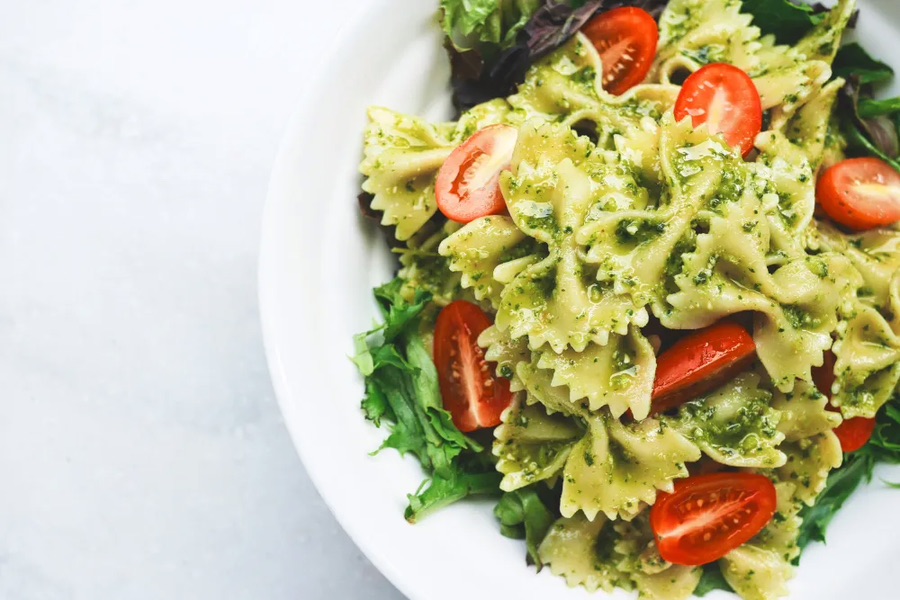
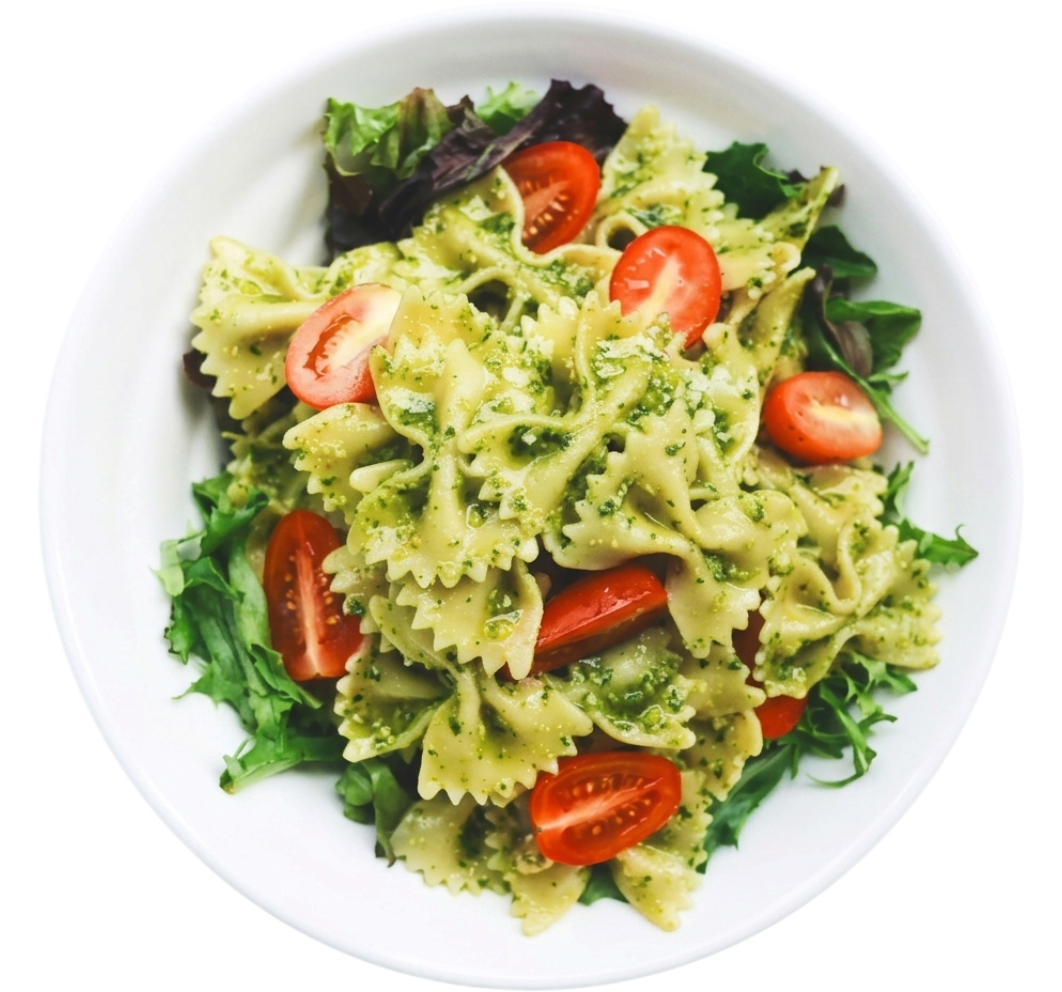
AI Uncrop reconstructs the missing parts of the main subject using only the visible portion.
If the edges of the main subject are clipped, they are seamlessly extended to restore the full form.
To uncrop an image, set the argument `uncrop.mode` to the value `ai.auto` and `removeBackground` to `true`:
| *(original image)* | *(uncropped image)* |
| :------------------------------------------------------------------------------------------------------------------------------------------------------------------------------------------------------------------: | :------------------------------------------------------------------------------------------------------------------------------------------------------------------------------------------------------------------: |
|  |  |
AI Uncrop works automatically:
* there’s no need to specify new dimensions or which edges to uncrop
* when no edges are cropped, the main subject will not be modified (i.e. AI Uncrop will be a no-op)
{% hint style="info" %}
AI Uncrop is different from [AI Expand](/image-editing-api-plus-plan/ai-expand.md): AI Uncrop focuses specifically on the main subject of the image.
{% endhint %}
If you want to give it a try, here's the code to reproduce the example above:
```bash
curl --request POST \
--url https://image-api.photoroom.com/v2/edit \
--header 'x-api-key: YOUR_API_KEY_HERE' \
--form imageFile=@/path/to/image.png \
--form uncrop.mode=ai.auto \
--form removeBackground=true \
--output result-ai-uncrop.png
```
Try it now!
{% hint style="warning" %}
`removeBackground` may **not** be set to false: AI Uncrop always has to be combined with background removal.
The API will later start enforcing this.
{% endhint %}
## Which resolutions are supported?
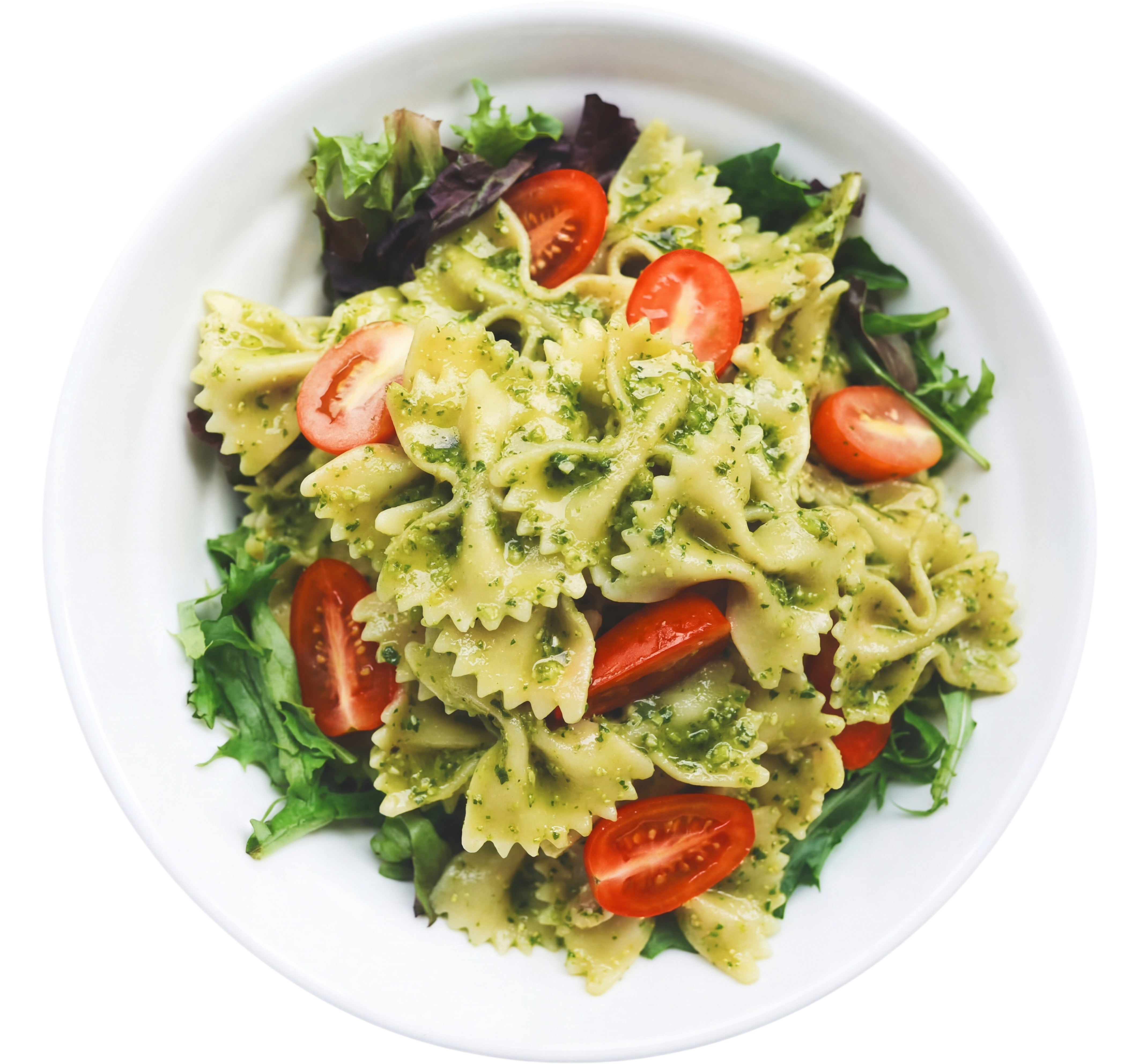
By default, AI Uncrop will produce outputs at a resolution of 1K (`1024x1024`).
Output resolutions of 2K and 4K are available for Enterprise plans:
(original image)
(default 1K output)
(4K output)
{% hint style="info" %}
Make sure to click on the images to see them in full resolution.
{% endhint %}
If you're interested to use 2K or 4K resolution, please [contact our team to book a demo](https://www.photoroom.com/contact-sales?utm_source=apidocumentation\&utm_medium=enterprisegated).
Book a demo
## Additional Parameters
### **`uncrop.seed`**
If you make several calls to the Image Editing API with the same image, you will notice that it will generate a different uncropped subject every time.
In order to reduce the randomness, you can set a fixed value for the seed that the API's random generator will use. The value of the argument `uncrop.seed` can be any positive integer.
If you provide a value for `uncrop.seed`, then the API should produce similar-looking subject uncroppings for the same image.
---
# Agent Instructions
This documentation is published with GitBook. GitBook is the documentation platform designed so that both humans and AI agents can read, navigate, and reason over technical content effectively. Learn more at gitbook.com.
## Querying This Documentation
If you need additional information that is not directly available in this page, you can query the documentation by asking a question.
Perform an HTTP GET request on the following URL with the `ask` and `goal` query parameters:
```
GET https://docs.photoroom.com/image-editing-api-plus-plan/ai-uncrop.md?ask=&goal=
```
`ask` is the immediate question: it should be specific, self-contained, and written in natural language.
`goal` is what the user is ultimately trying to achieve, the reason they need the answer. Sharing it helps GitBook give you a better, more relevant answer. A goal is most helpful when it describes the outcome the user wants rather than restating the question. For example, with `ask=how do I create an API token`, a goal like `automate deployments from our CI pipeline` lets GitBook tailor the answer to that use case.
The response will contain a direct answer to the question and relevant excerpts and sources from the documentation.
Use this mechanism when the answer is not explicitly present in the current page, you need clarification or additional context, or you want to retrieve related documentation sections.