[Alpha] Edit With AI

circle-exclamation

Overview

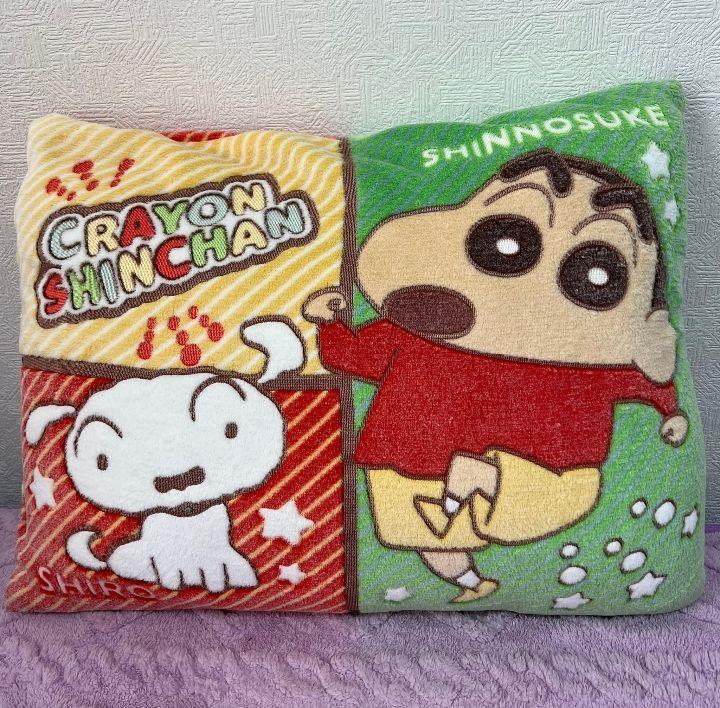
Edit With AI allows you to automatically edit the input image by providing a textual description of the changes that you want to make.

For example, you can ask to add or remove objects from the image, change a color, etc.

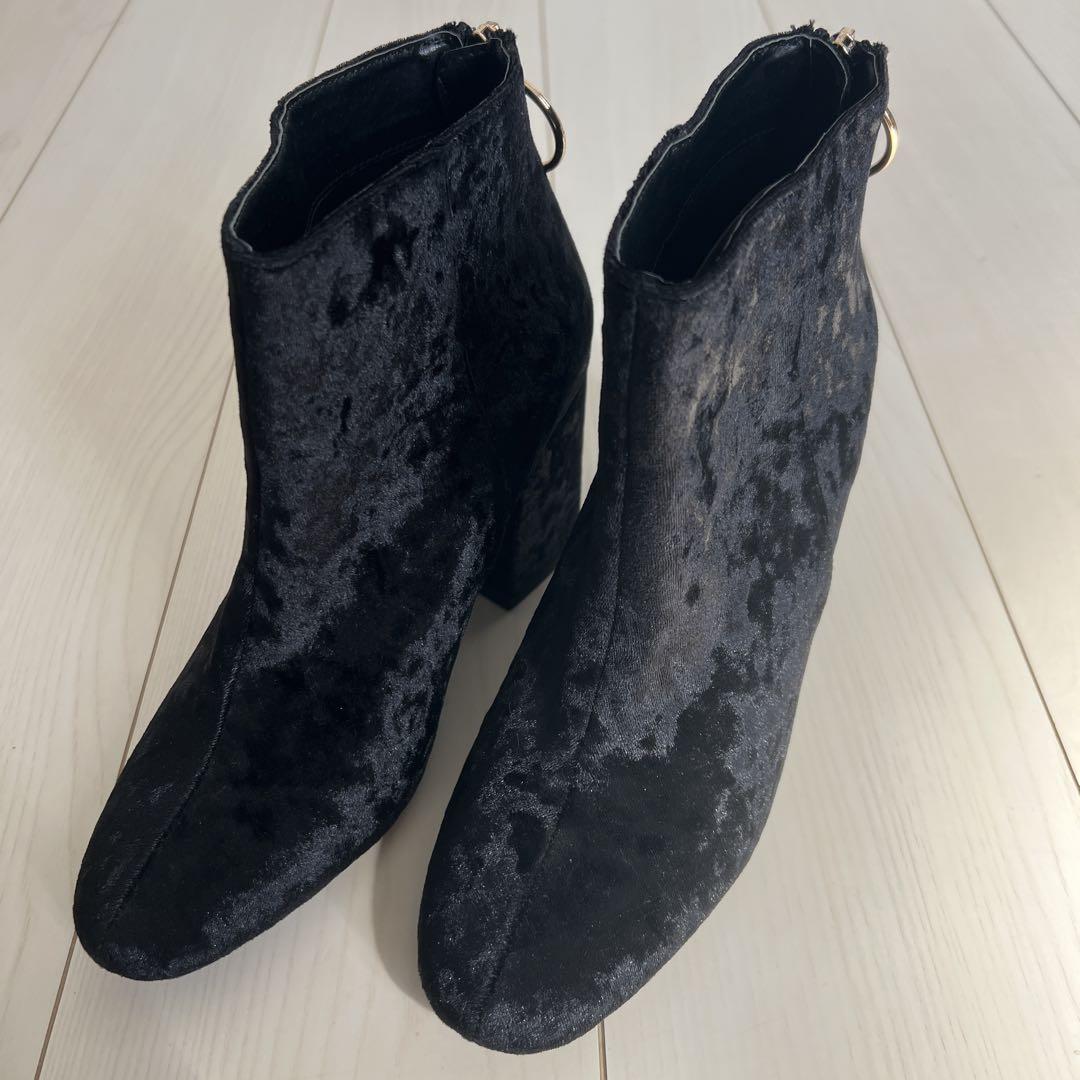
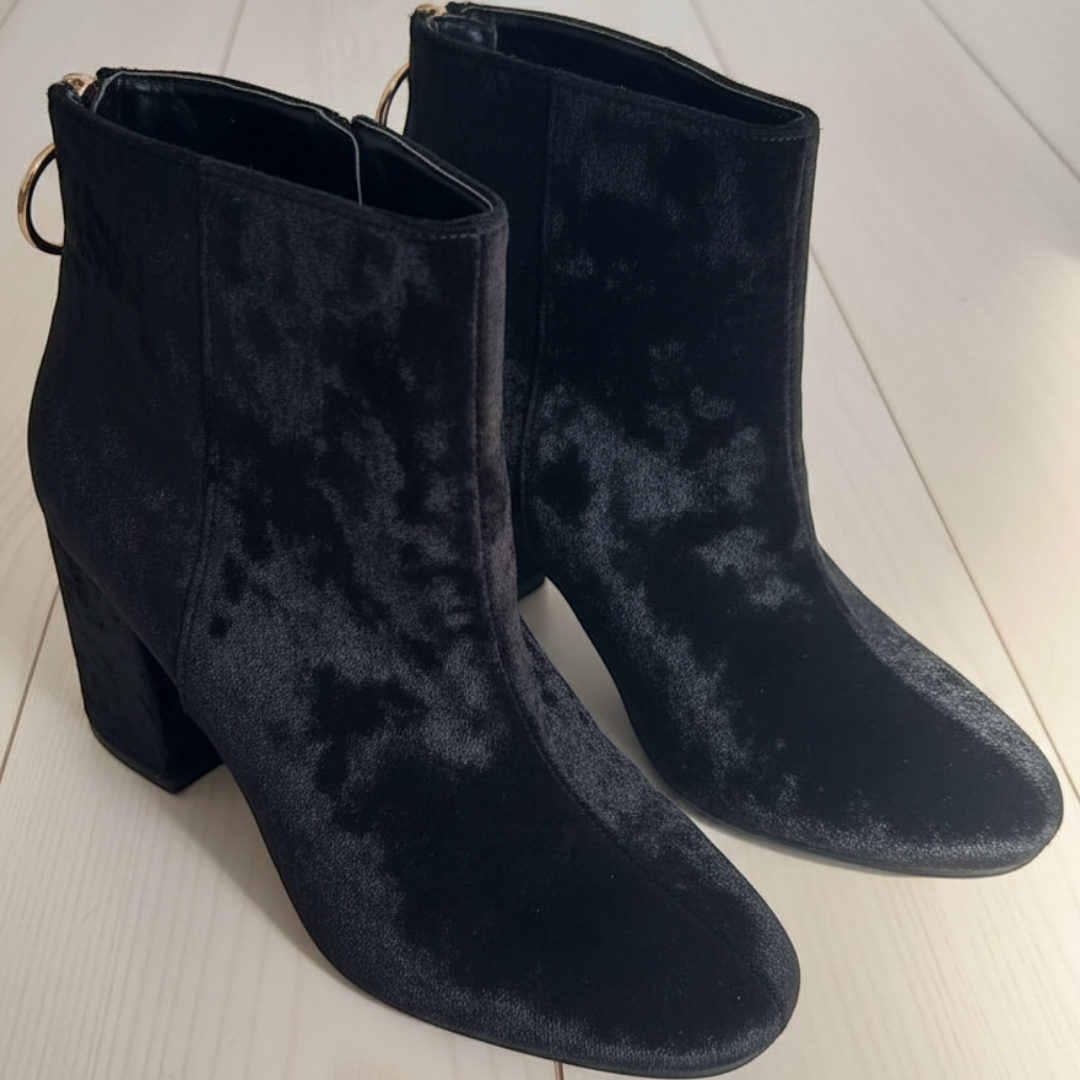
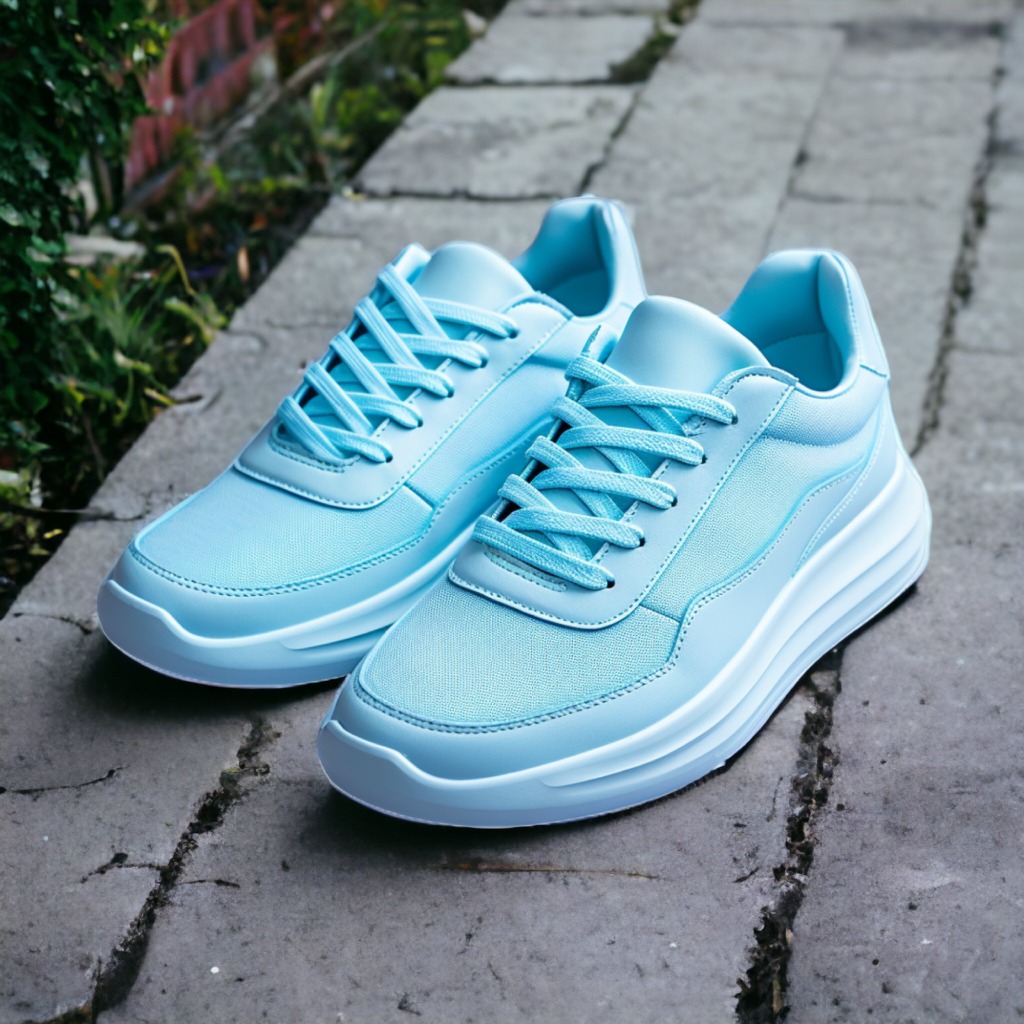
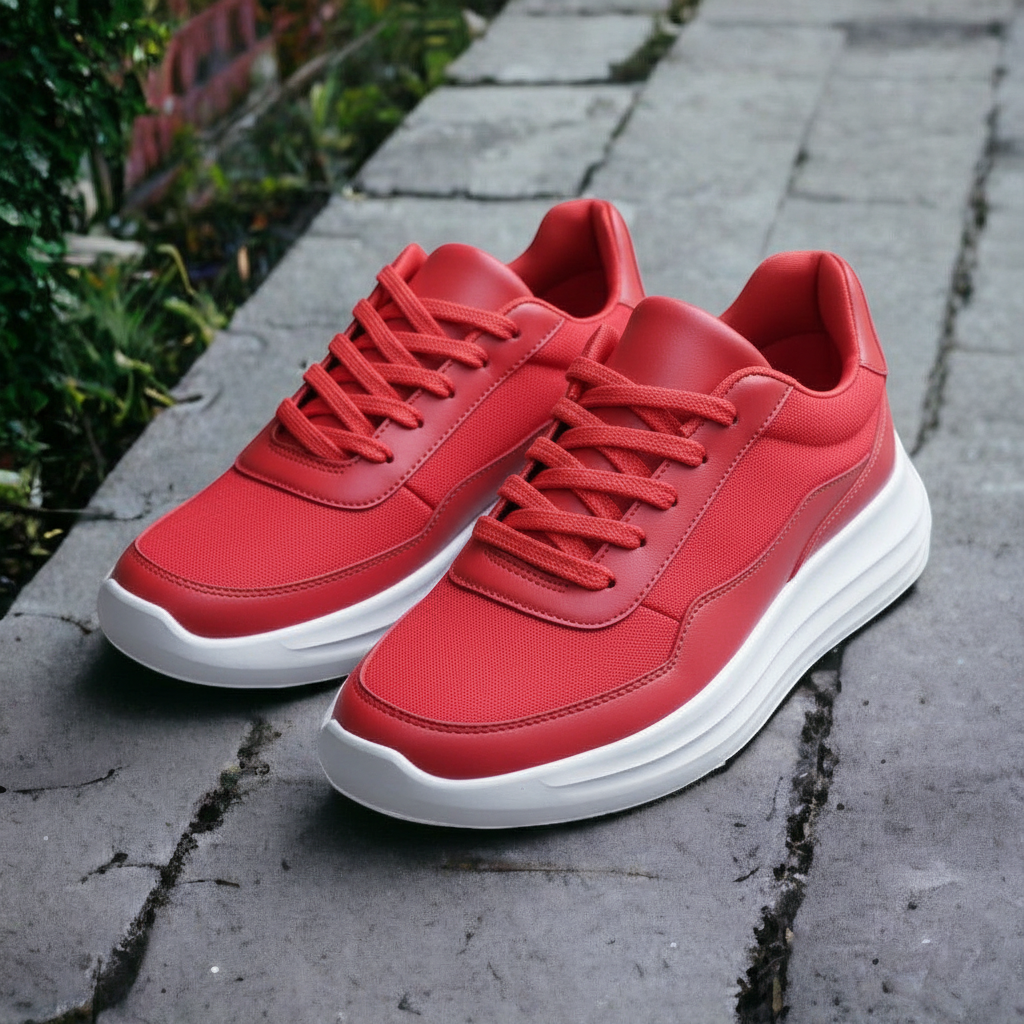
To use Edit With AI, set the parameter editWithAI.mode to ai.auto and use the parameter editWithAI.prompt to describe the changes:

(original image)

(edited image)

editWithAI.prompt="Change the shoes color to red"
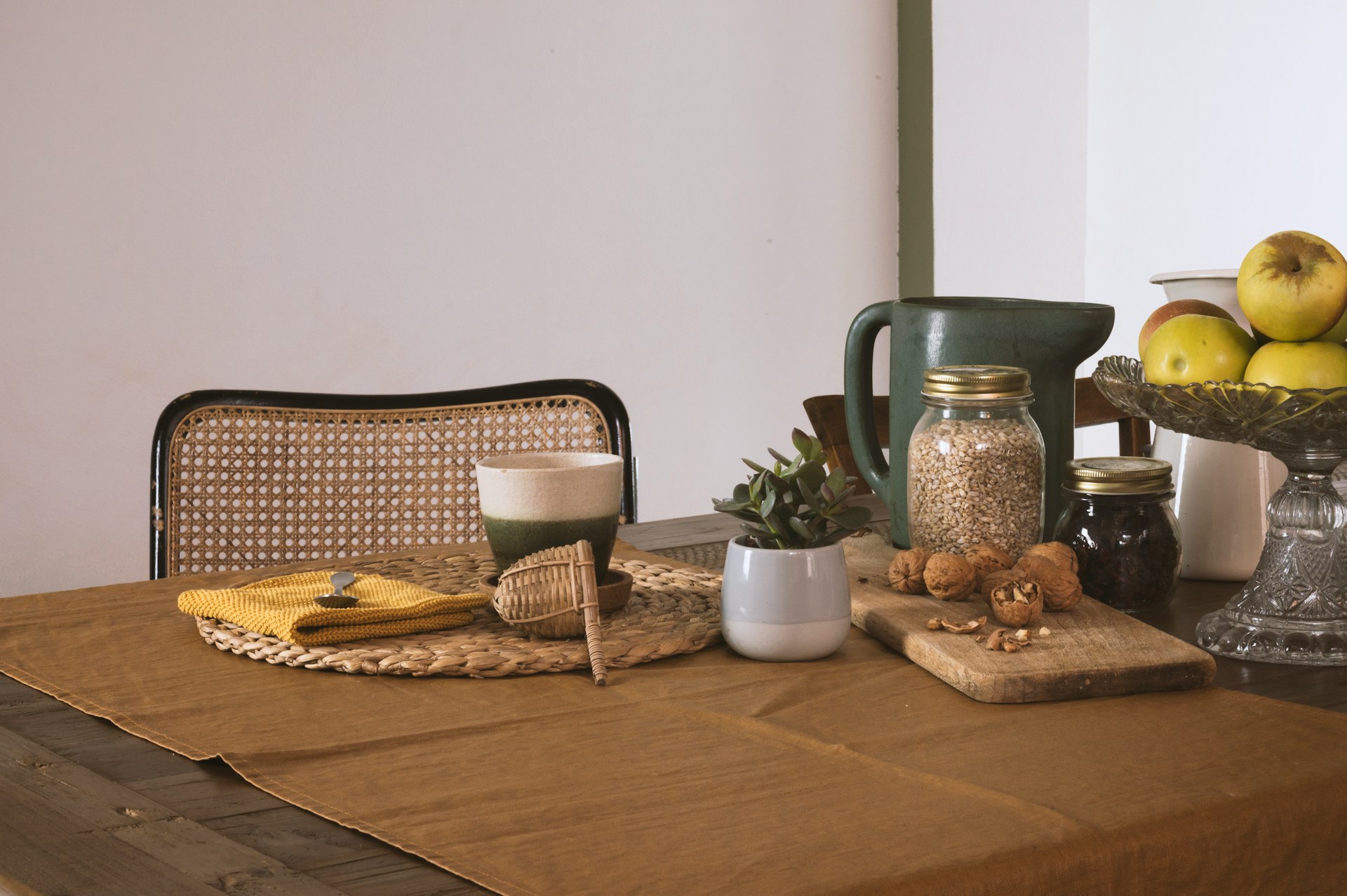
editWithAI.prompt="Remove all the objects on the table"
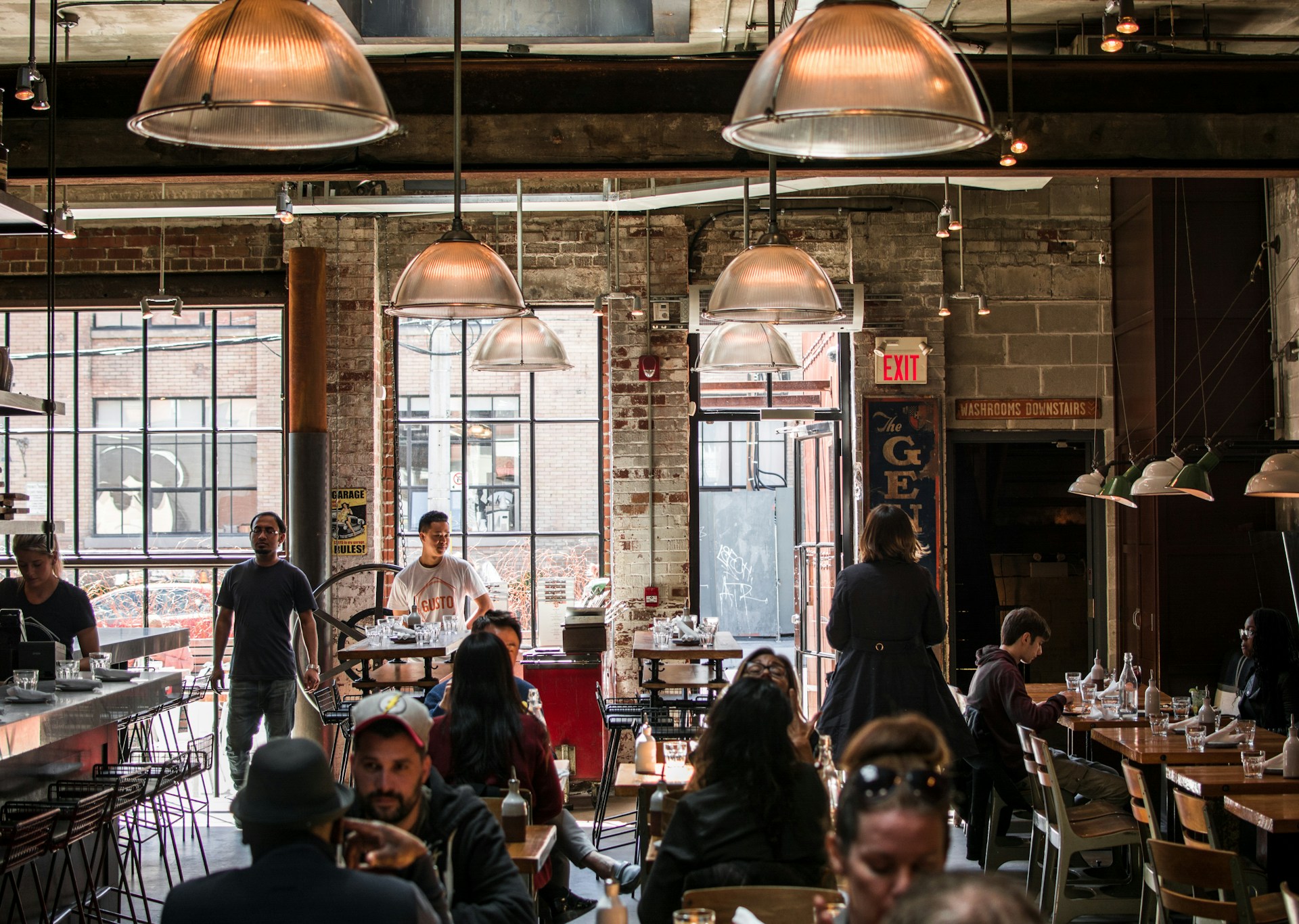
editWithAI.prompt="Remove all the people"

If you want to give it a try, here's the code to reproduce the first example above:

curl --request POST \
  --url https://image-api.photoroom.com/v2/edit \
  --header 'x-api-key: YOUR_API_KEY_HERE' \
  --form imageFile=@/path/to/image.png \
  --form removeBackground=false \
  --form referenceBox=originalImage \
  --form editWithAI.mode=ai.auto \
  --form editWithAI.prompt='Change the shoes color to red' \
  --output result.png

Try it now!

Examples of Use Cases

Product Staging

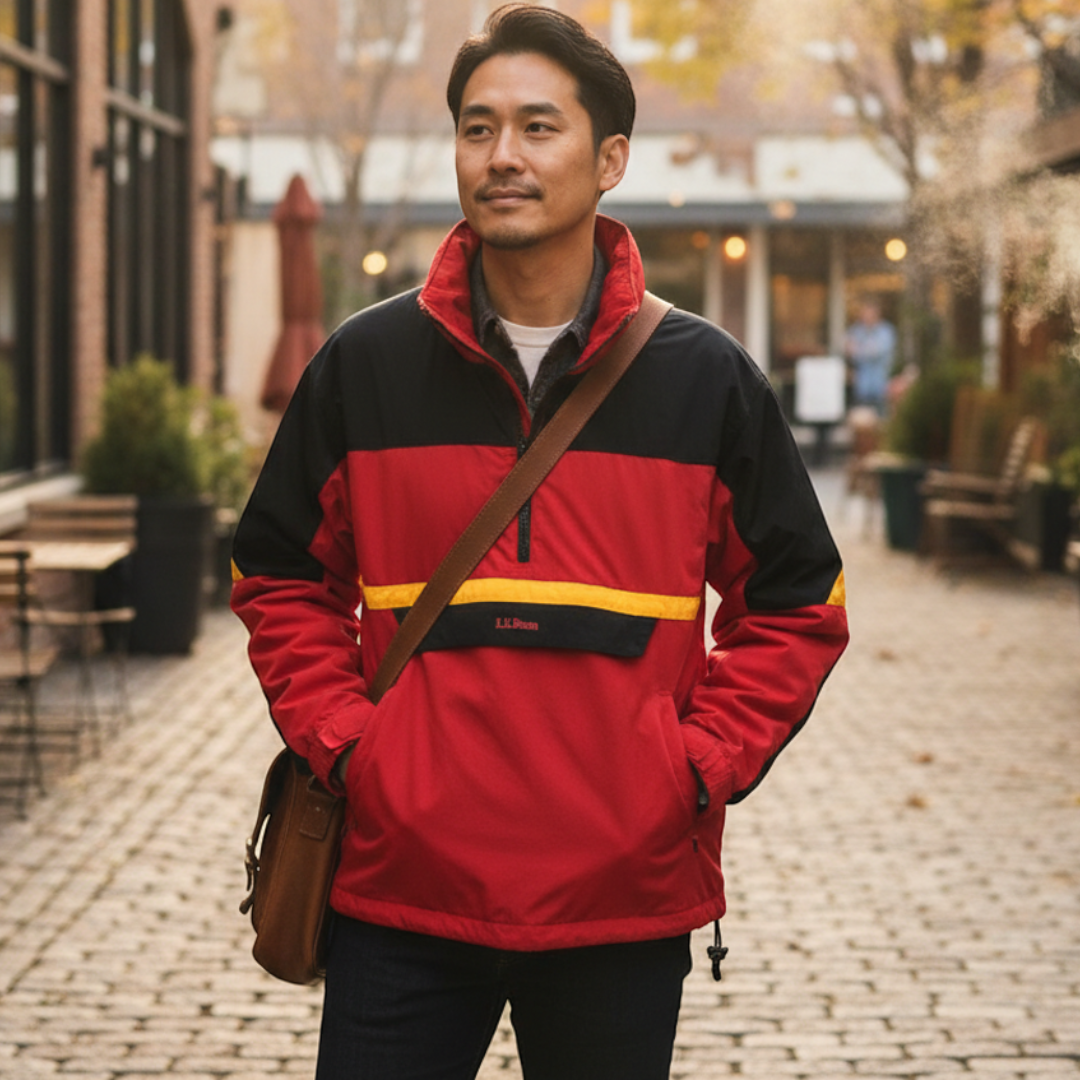
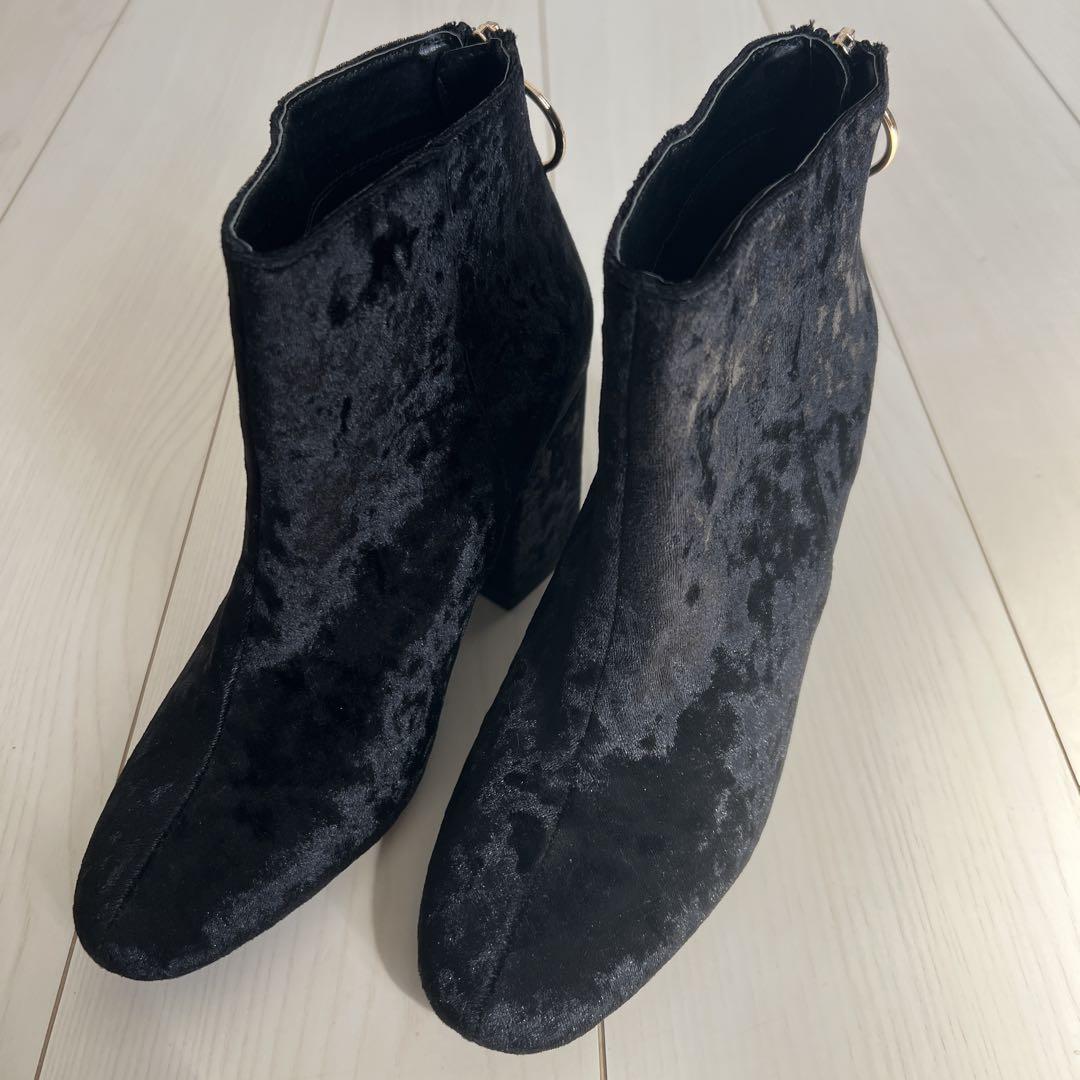
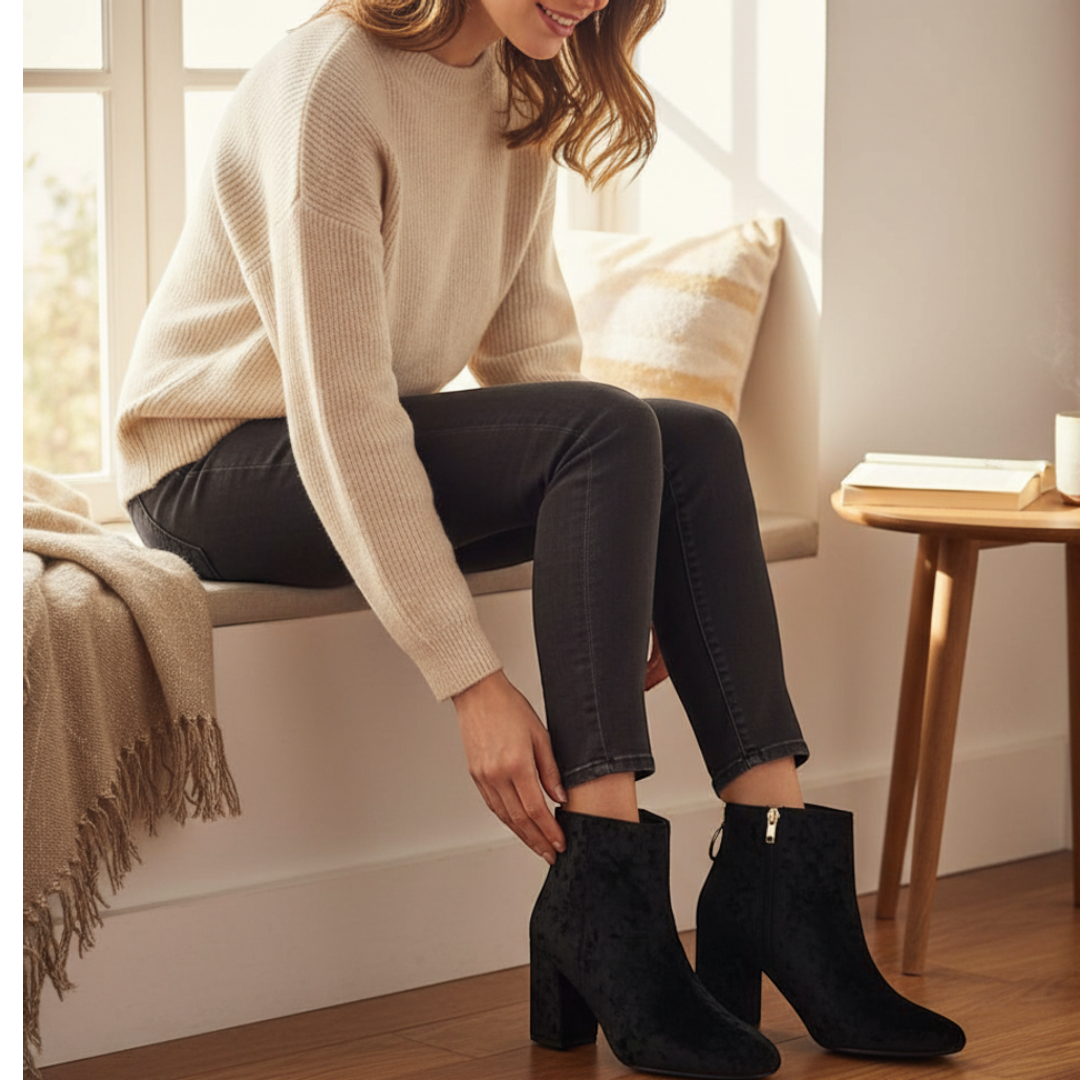
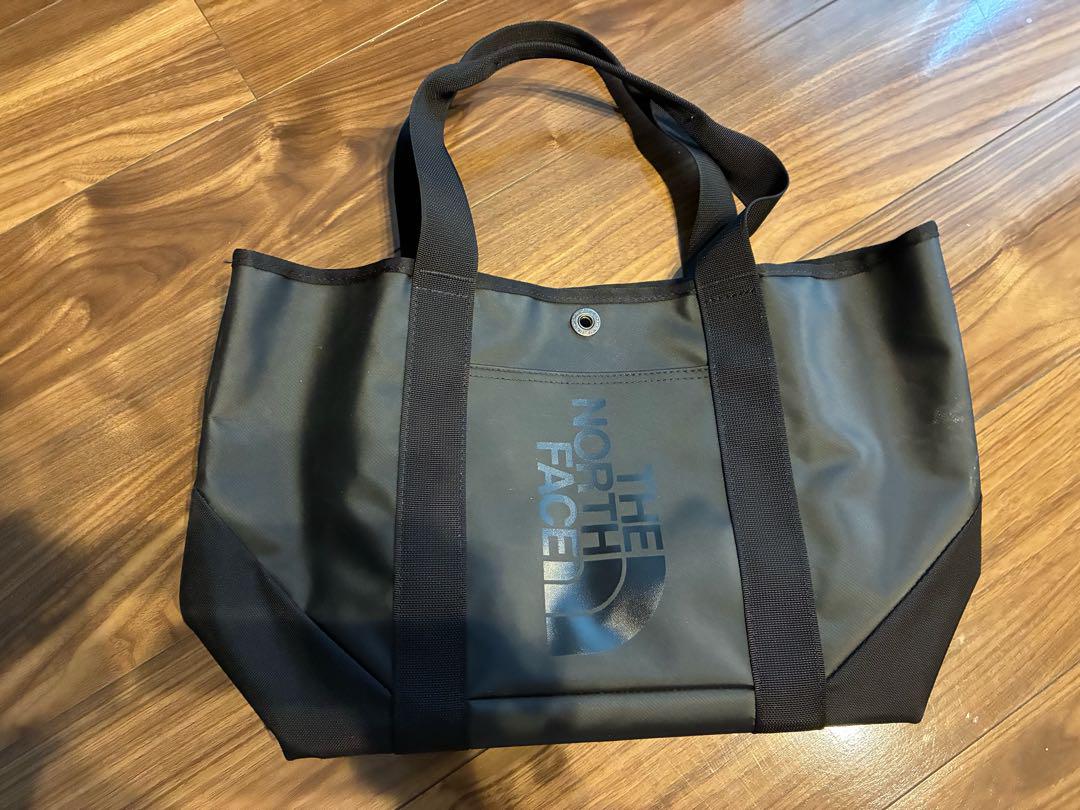
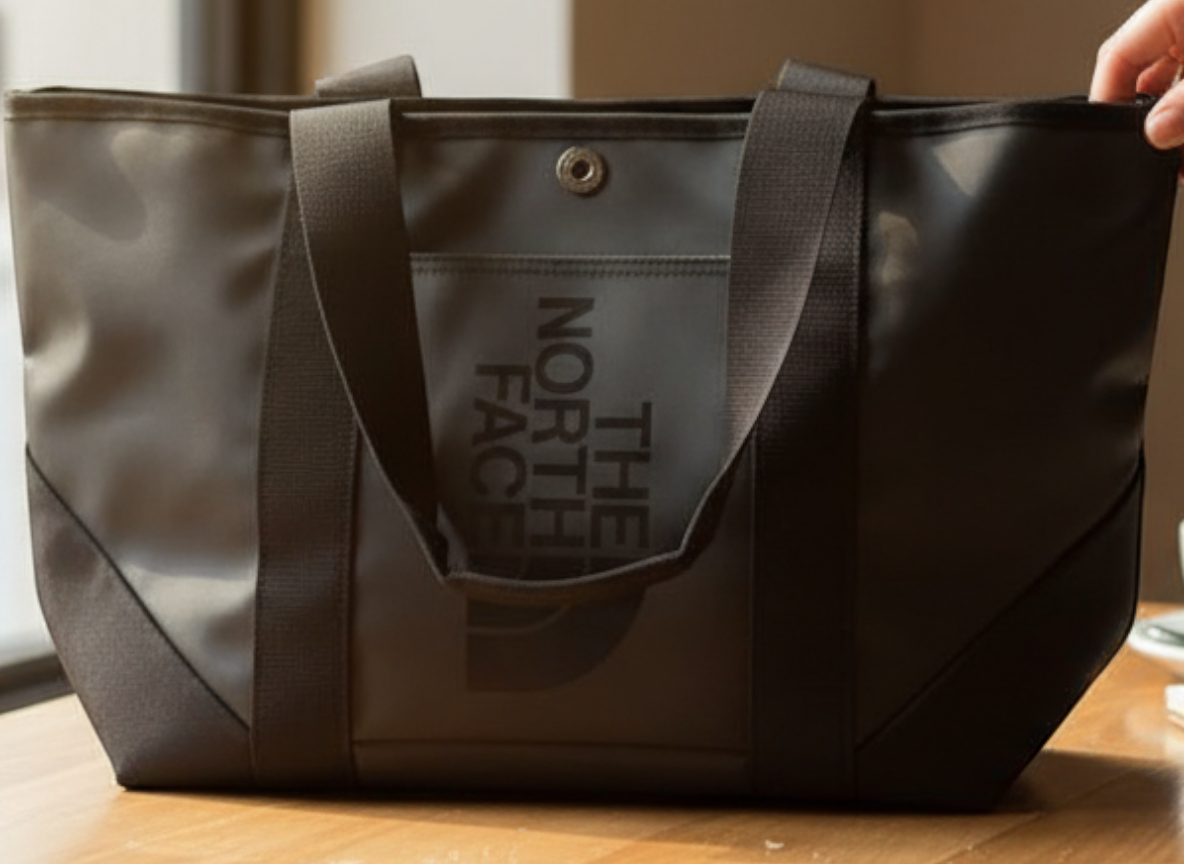
You can use Edit With AI to place an item into a realistic lifestyle scene, like being held, worn, or placed on a table.

To do so, set the following value for the argument editWithAI.prompt:

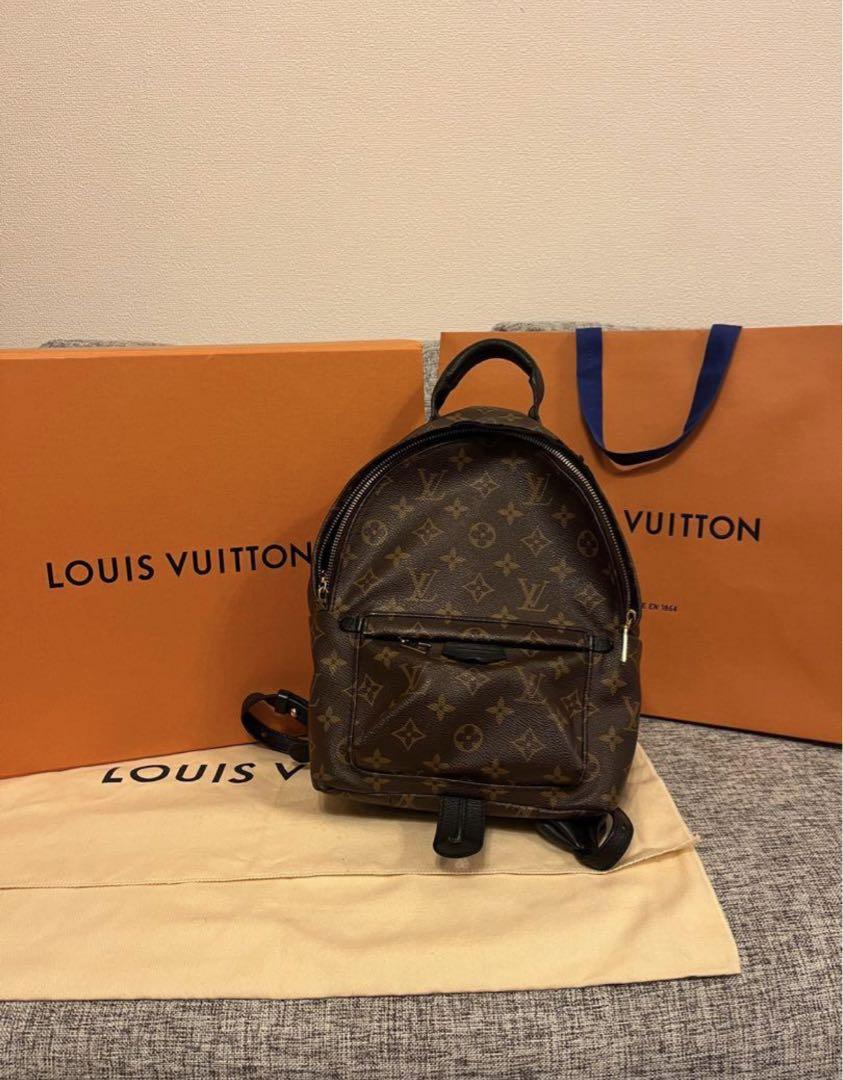
Here are examples of the results it can produce:

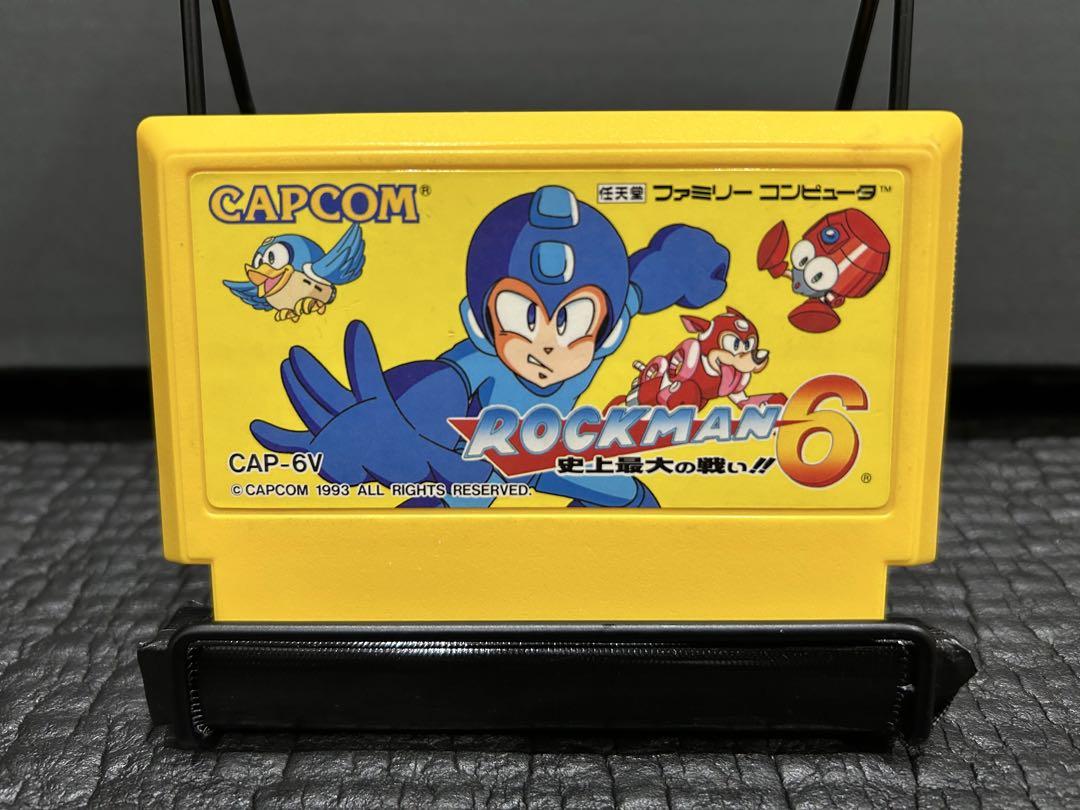
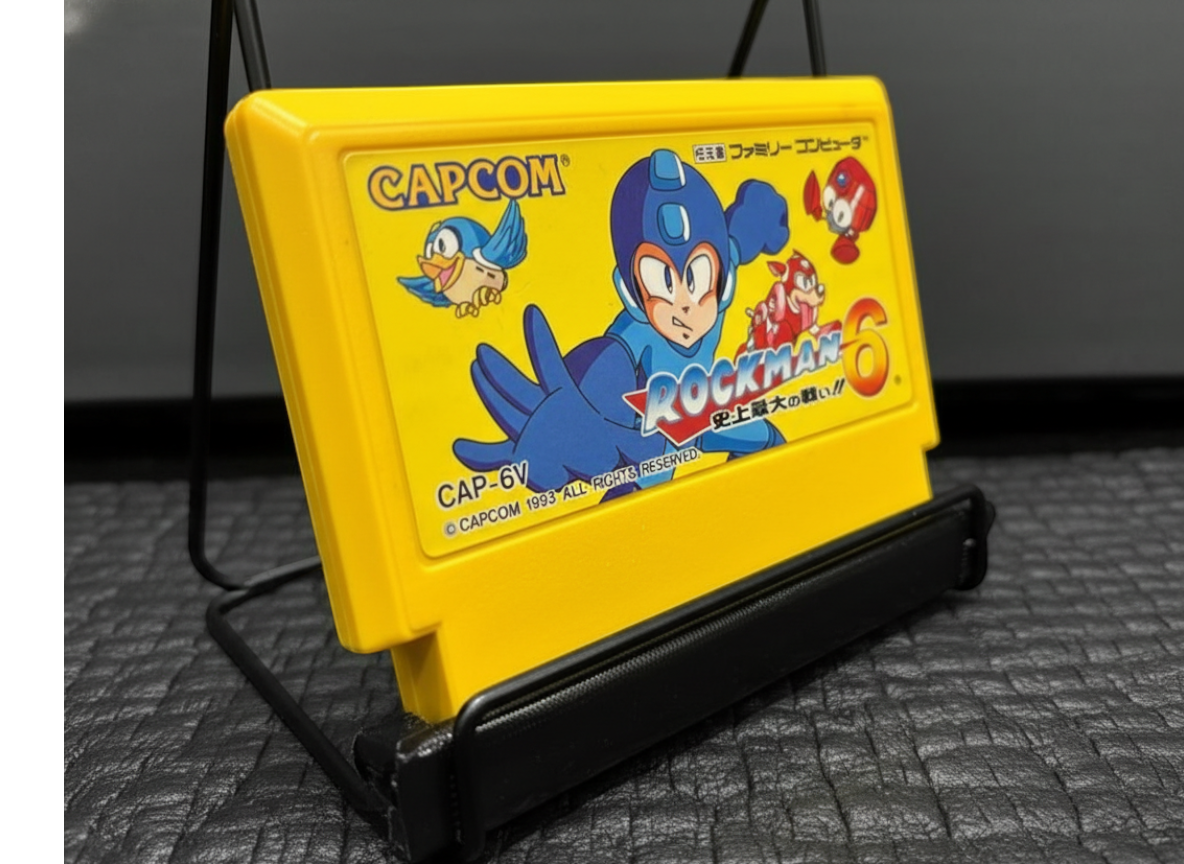
(original image)

(edited image)

If you want to give it a try, here's the code to reproduce the results above:

Try it now!

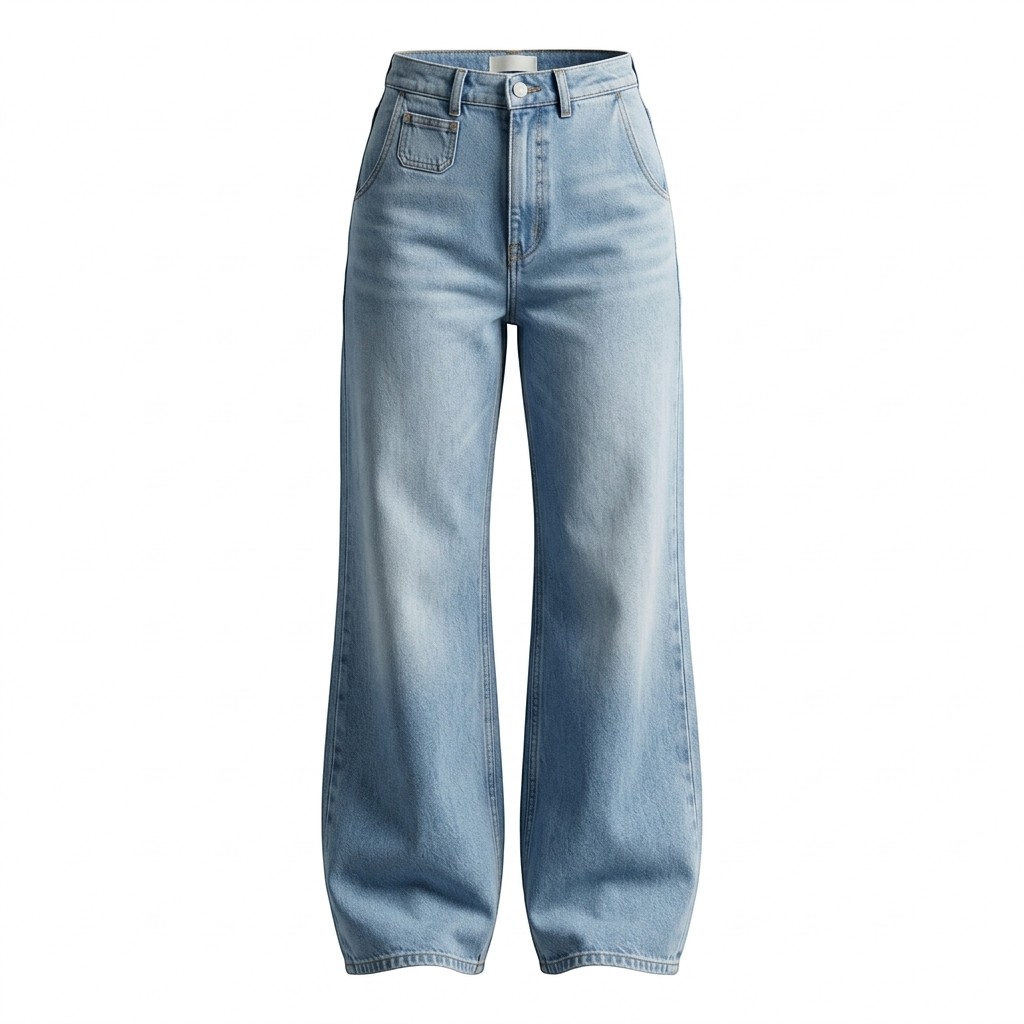
Ghost Mannequin

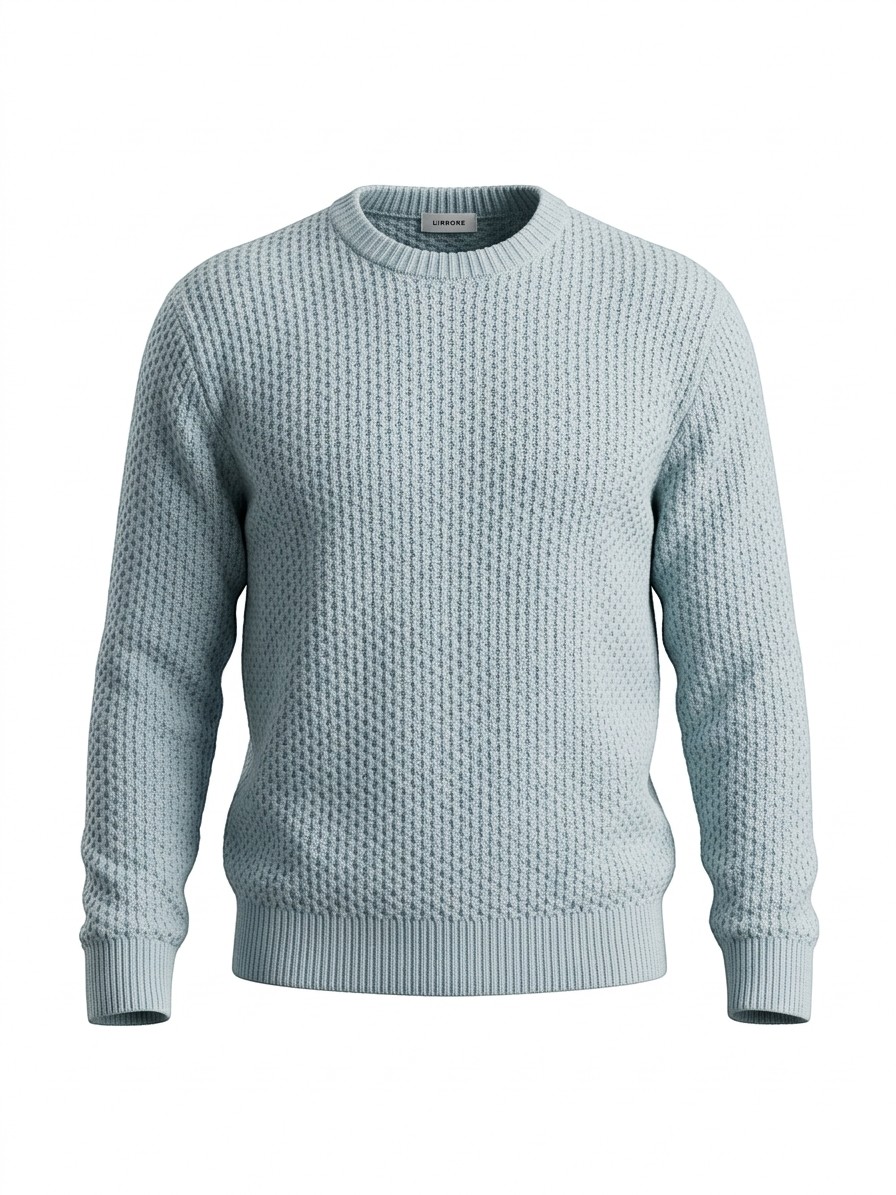
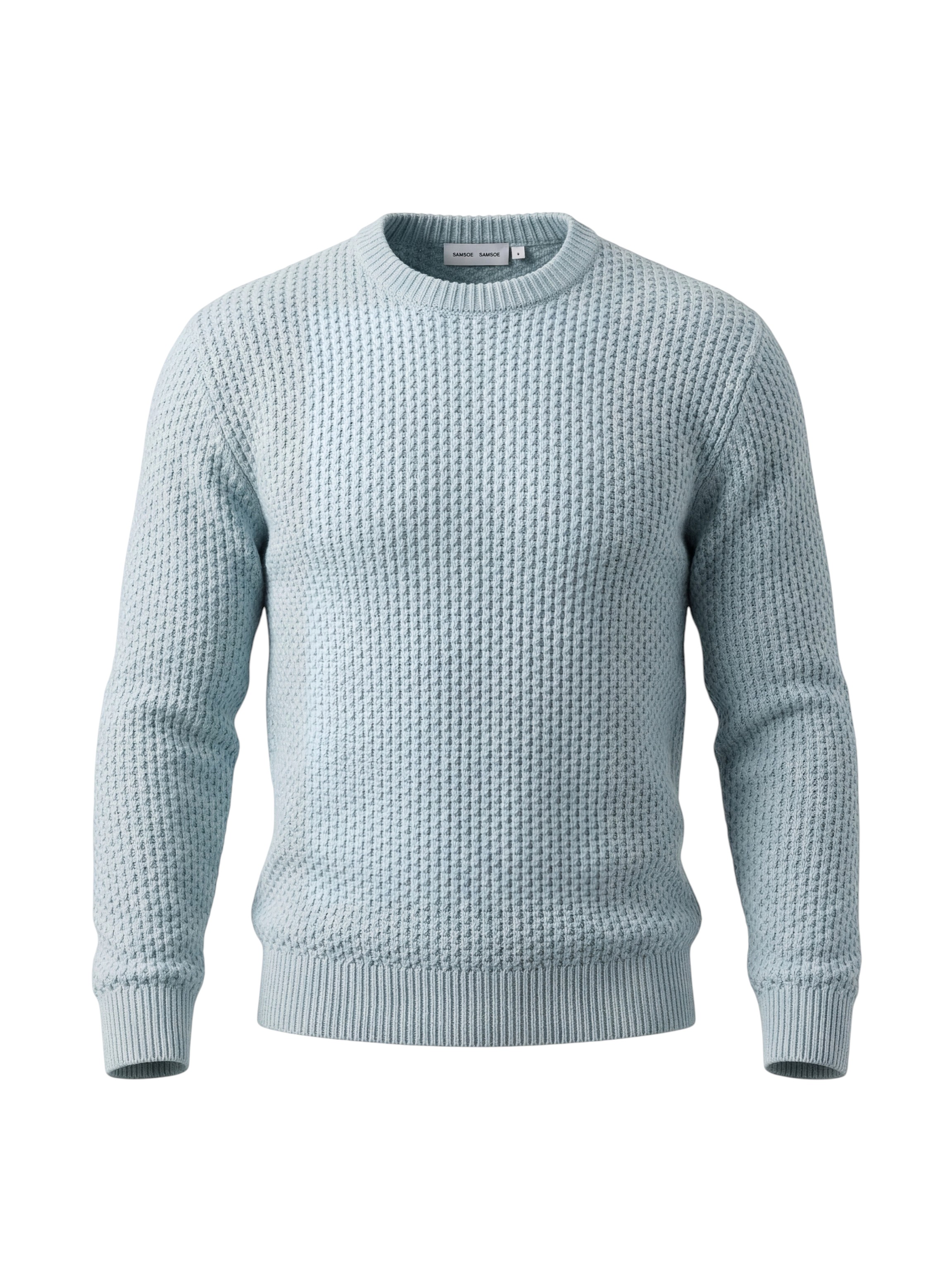
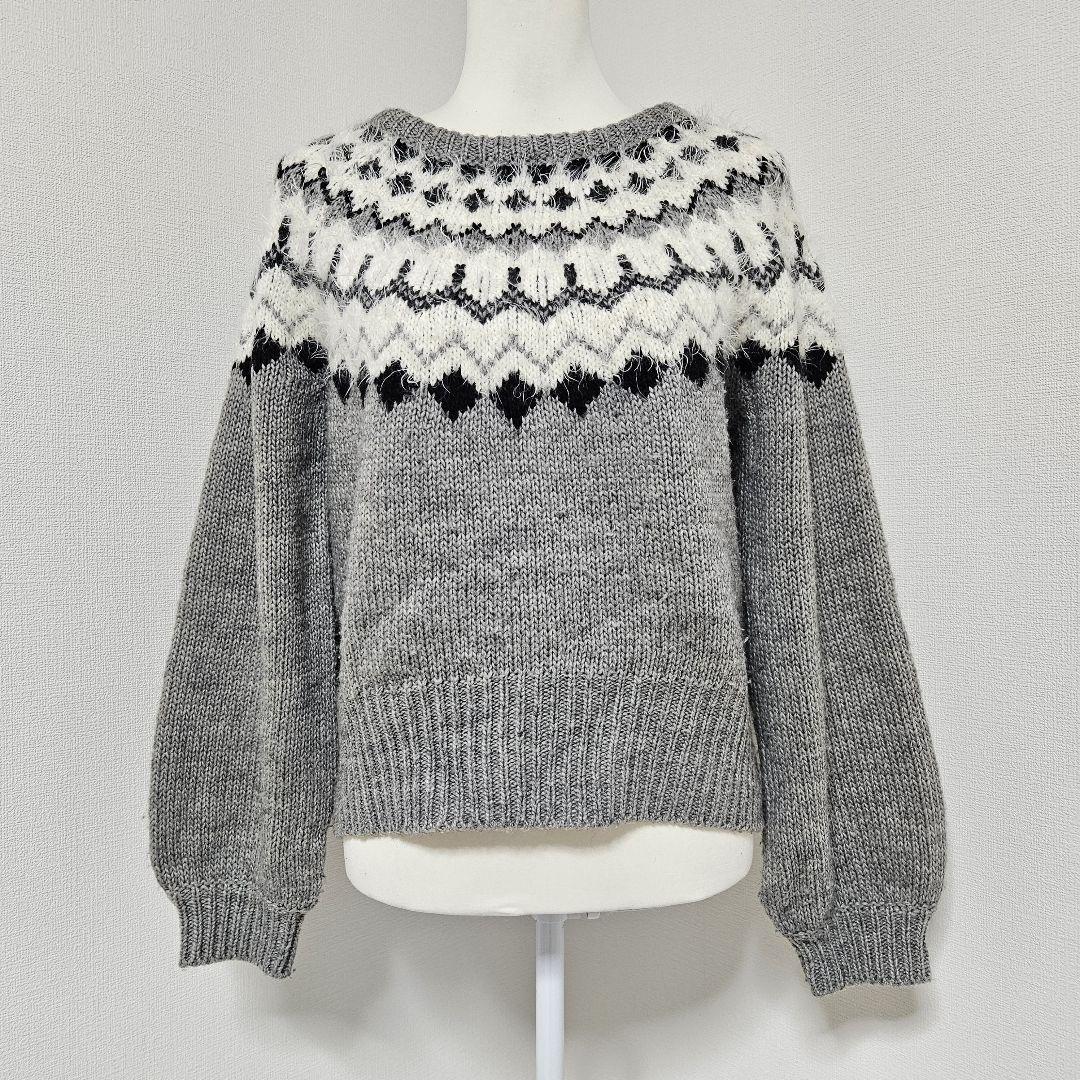
You can use Edit With AI to place a piece of clothing on a ghost mannequin.

To do so, set the following value for the argument editWithAI.prompt:

Here are examples of the results it can produce:

(original image)

(edited image)

If you want to give it a try, here's the code to reproduce the results above:

Try it now!

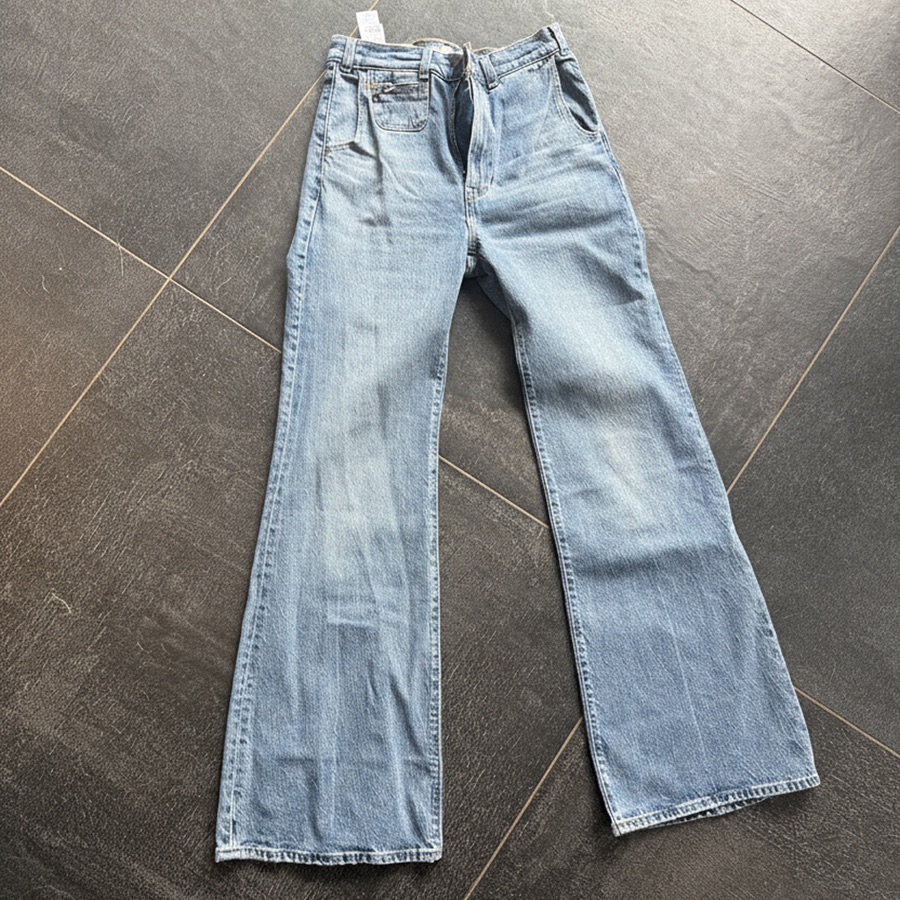
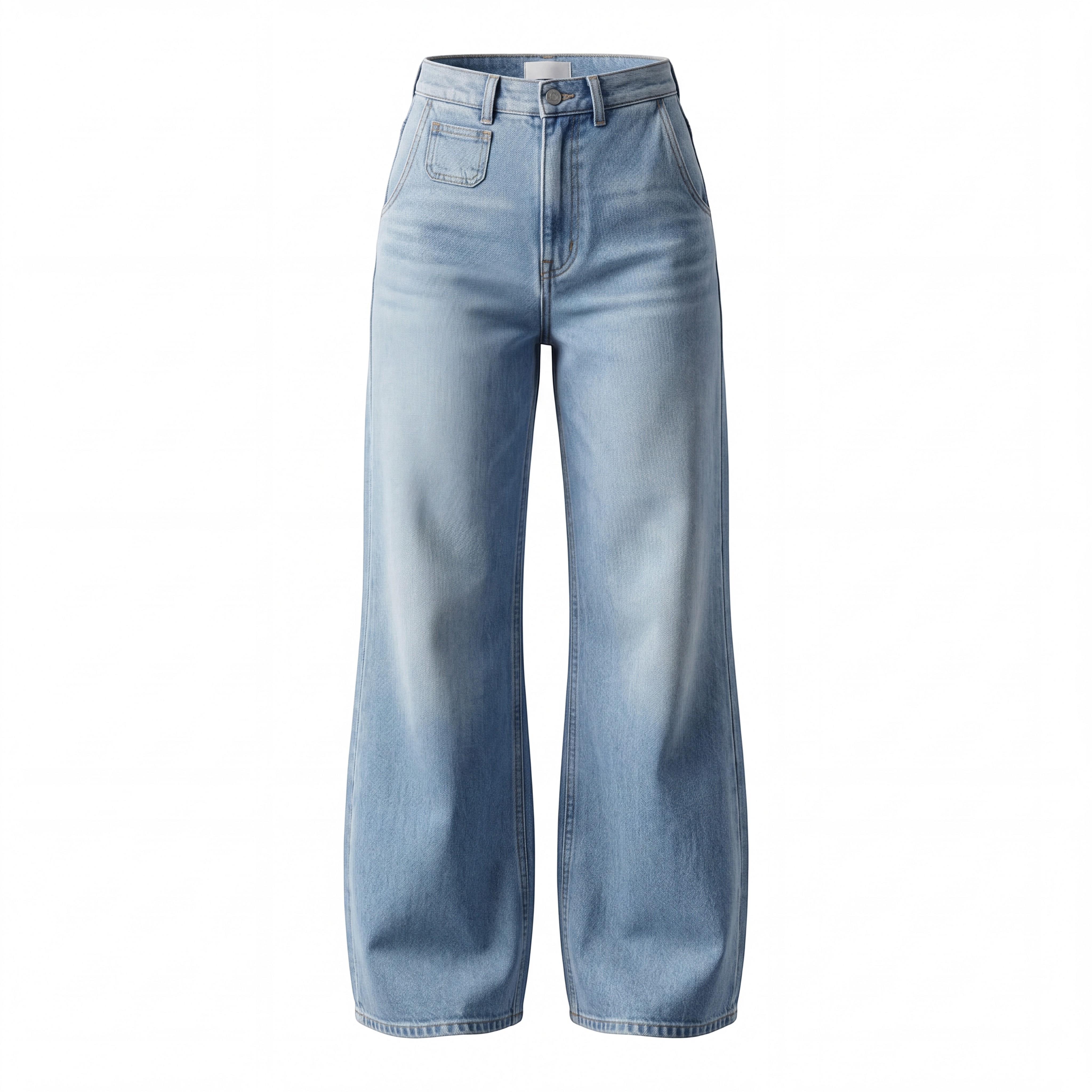
Flat Lay

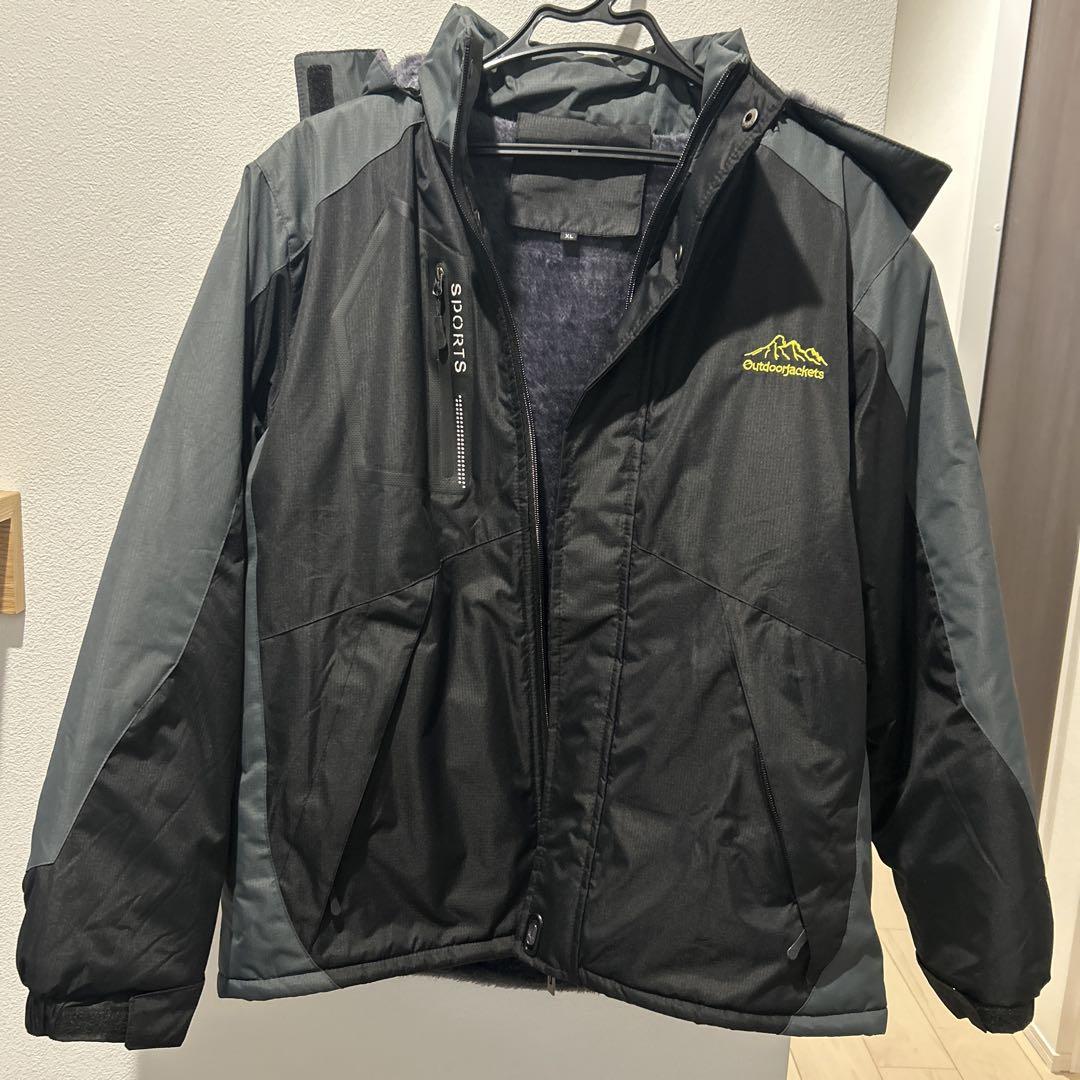
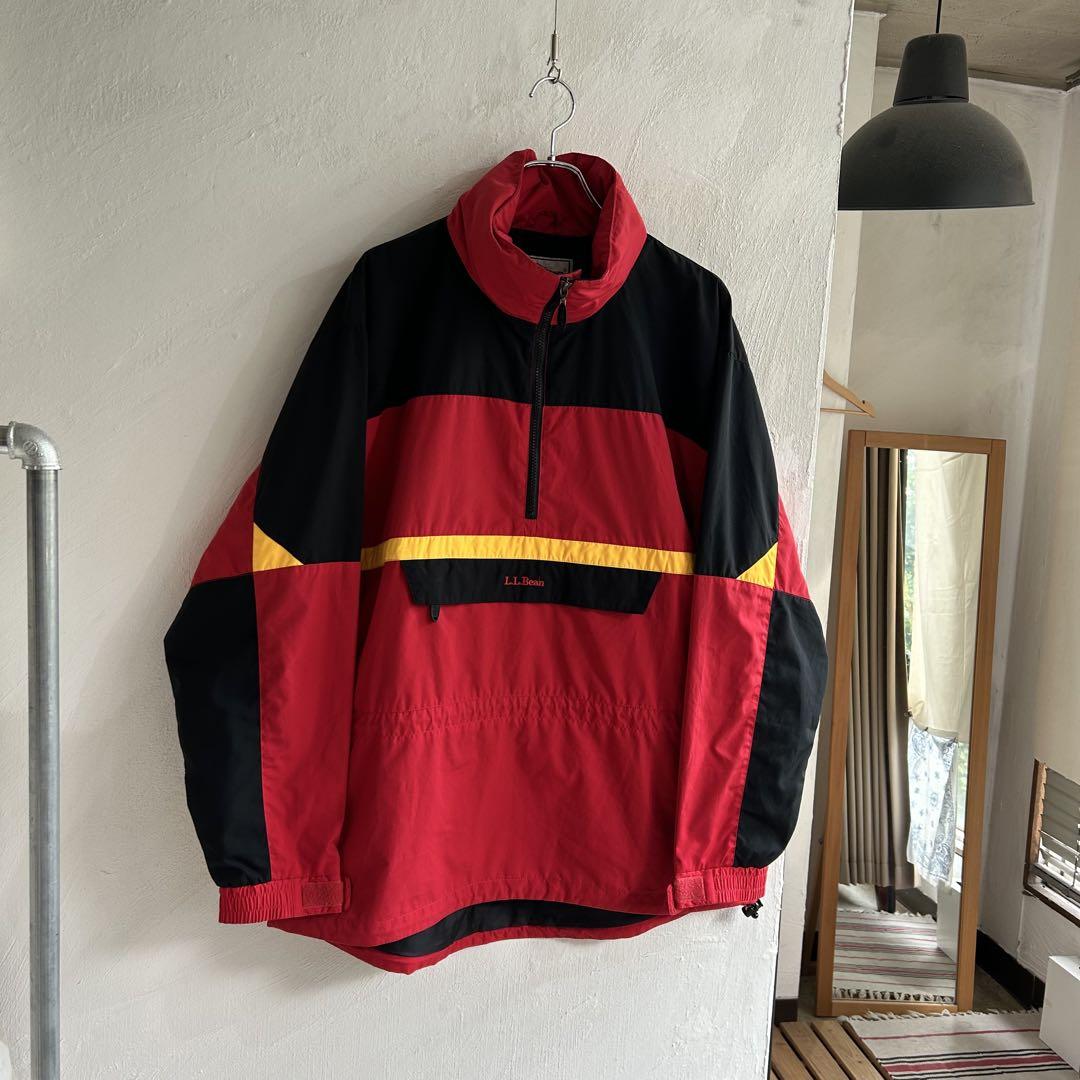
You can use Edit With AI to generate a flay lay shot of a piece of clothing.

To do so, set the following value for the argument editWithAI.prompt:

Here are examples of the results it can produce:

(original image)

(edited image)

If you want to give it a try, here's the code to reproduce the results above:

Try it now!

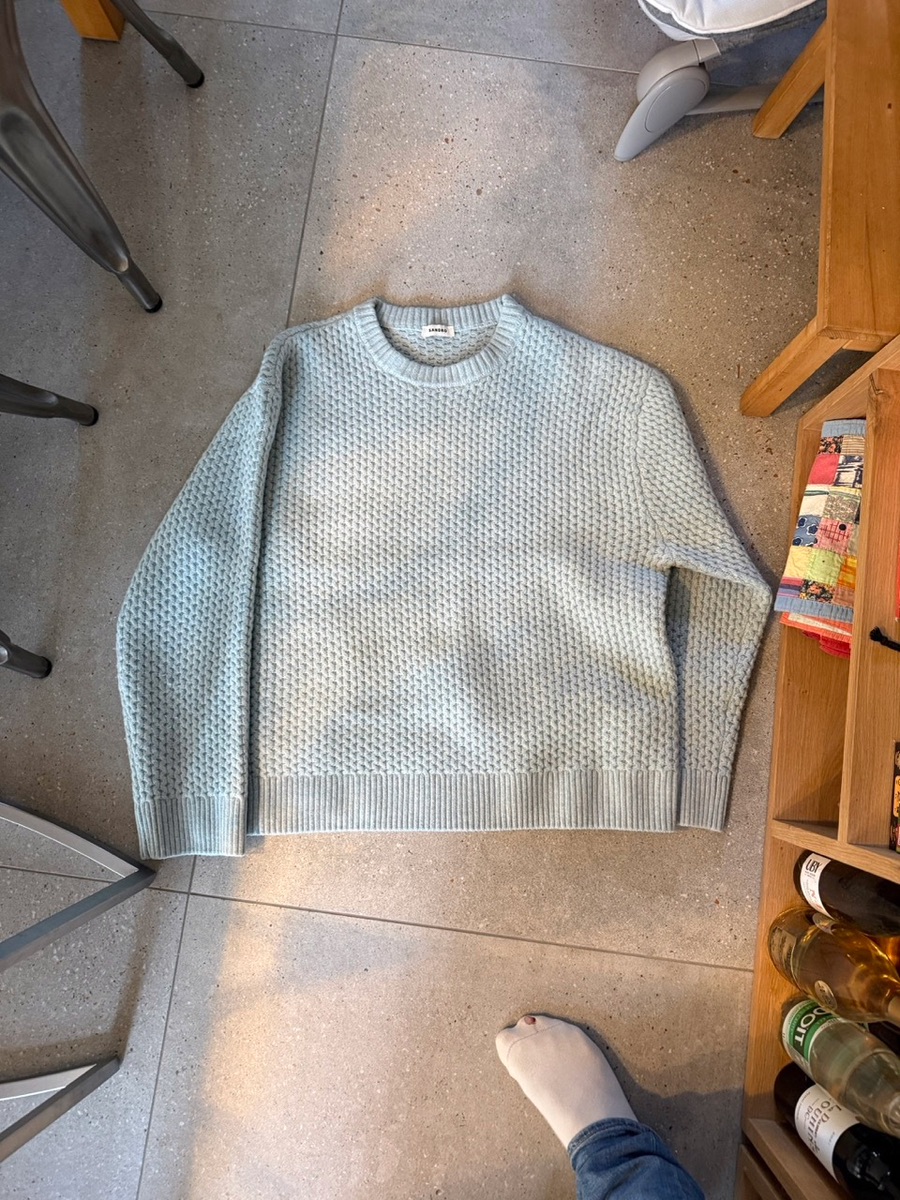
Other Angle

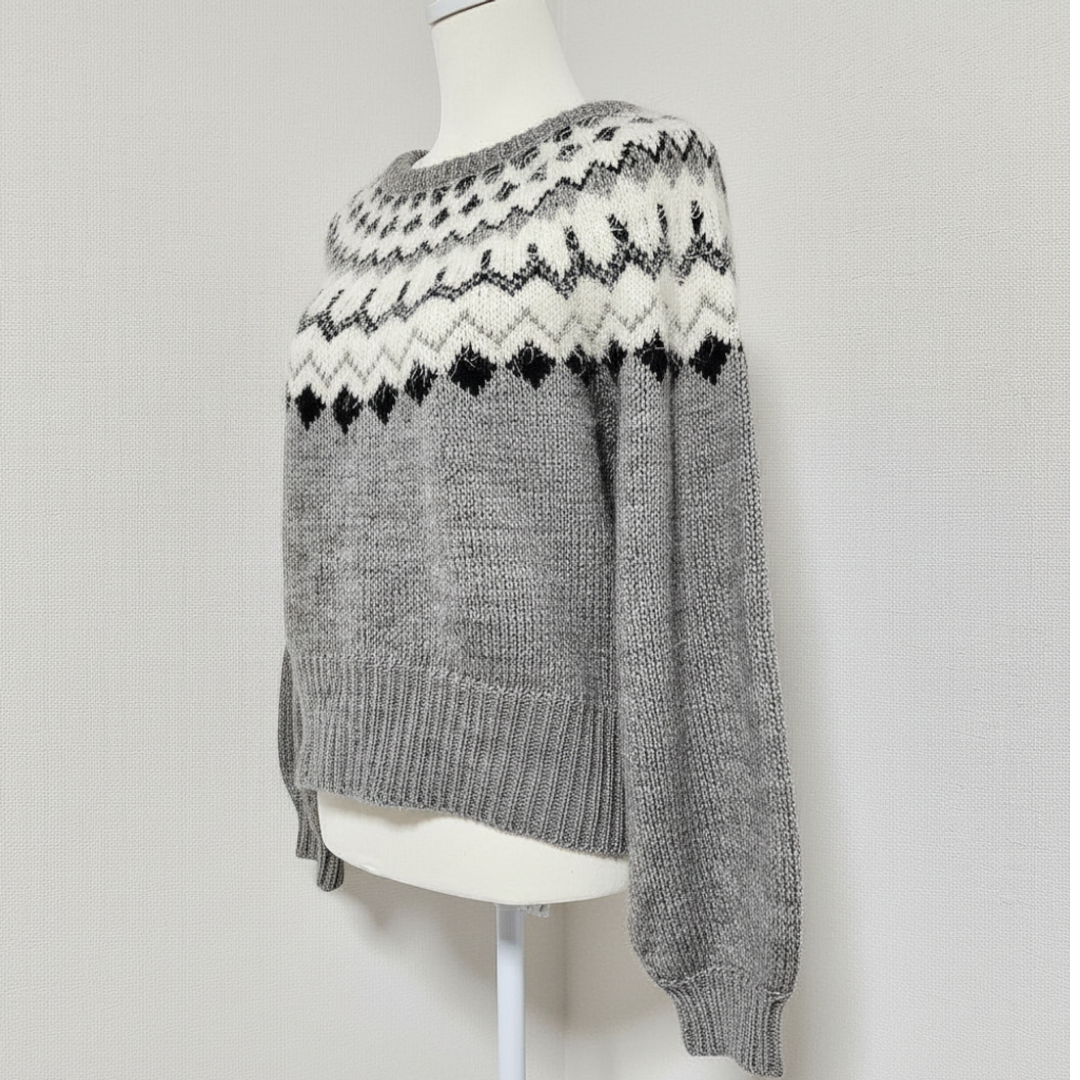
You can use Edit With AI to create a new image from a different angle.

To do so, set the following value for the argument editWithAI.prompt:

circle-info

If you need to create images from a specific angle, it can be achieved by editing the prompt to explicitly mention which angle should be used.

For example, by replacing "Change the camera angle and viewpoint (e.g., frontal to 3/4 view or side view, high to low angle, wide to tight)" with "Change the camera angle and viewpoint to a 3/4 view".

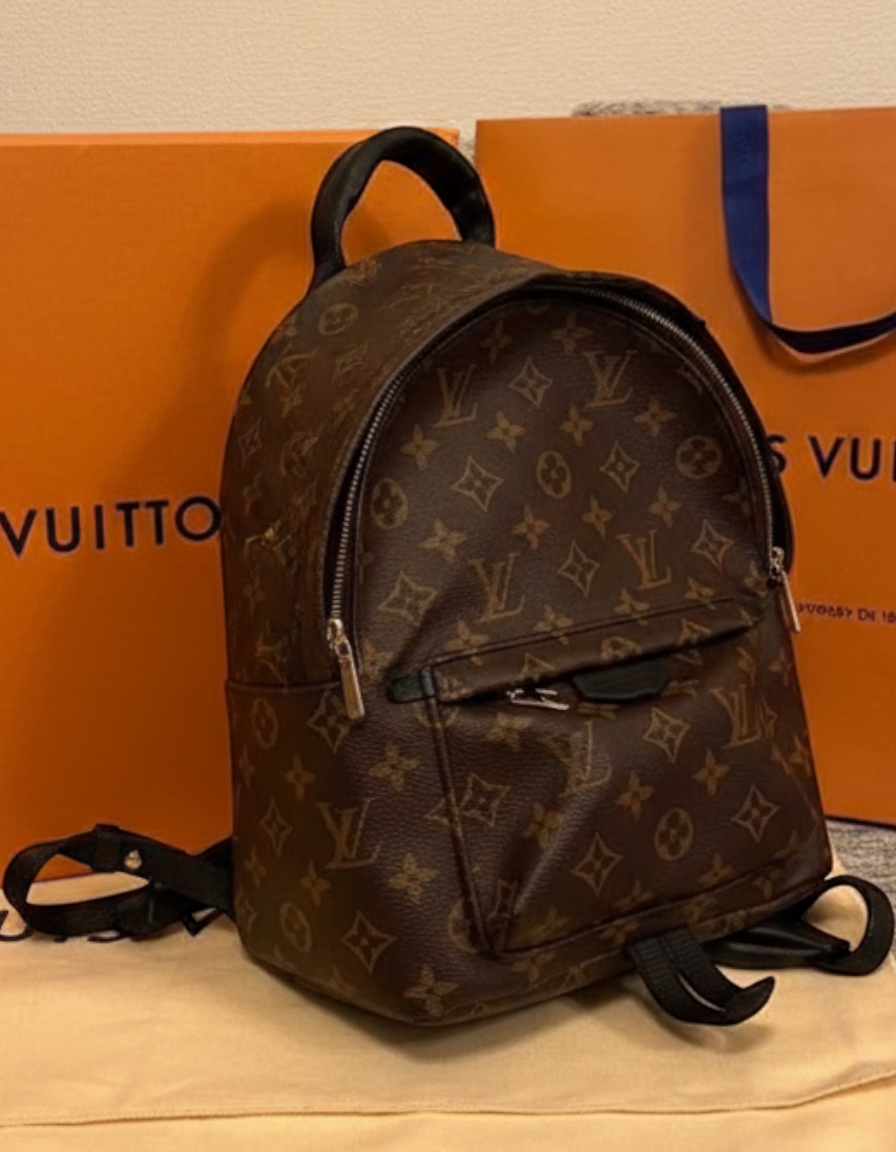
Here are examples of the results it can produce:

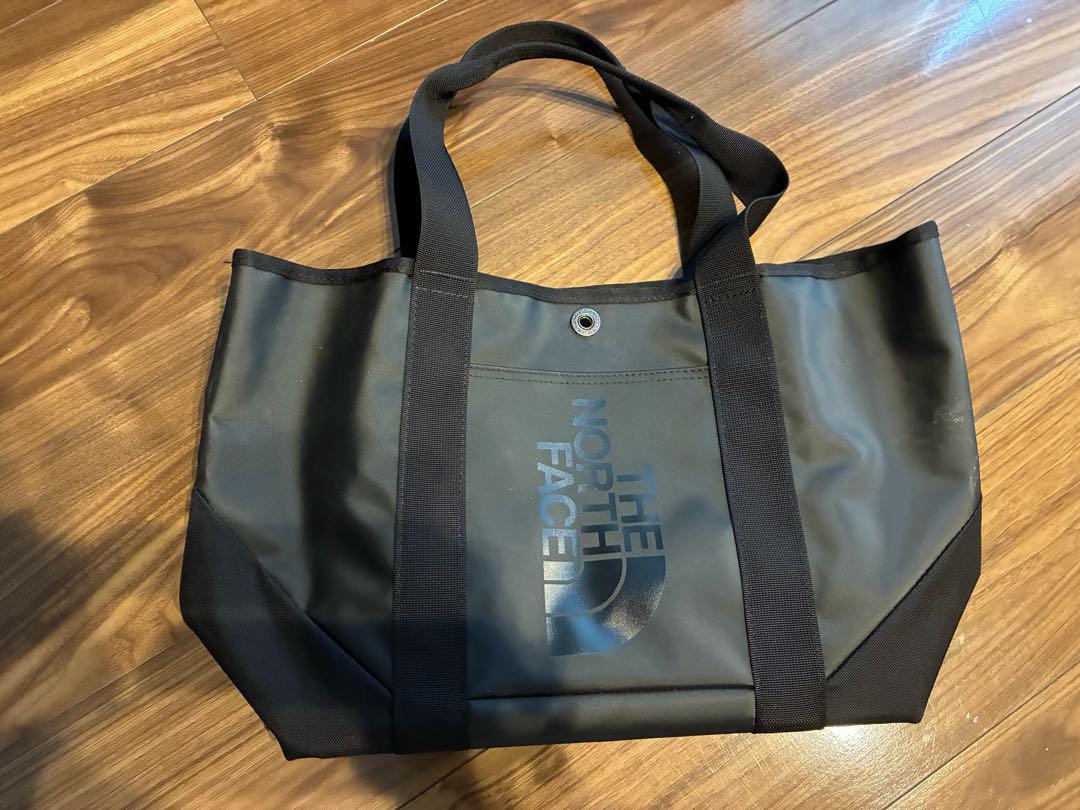
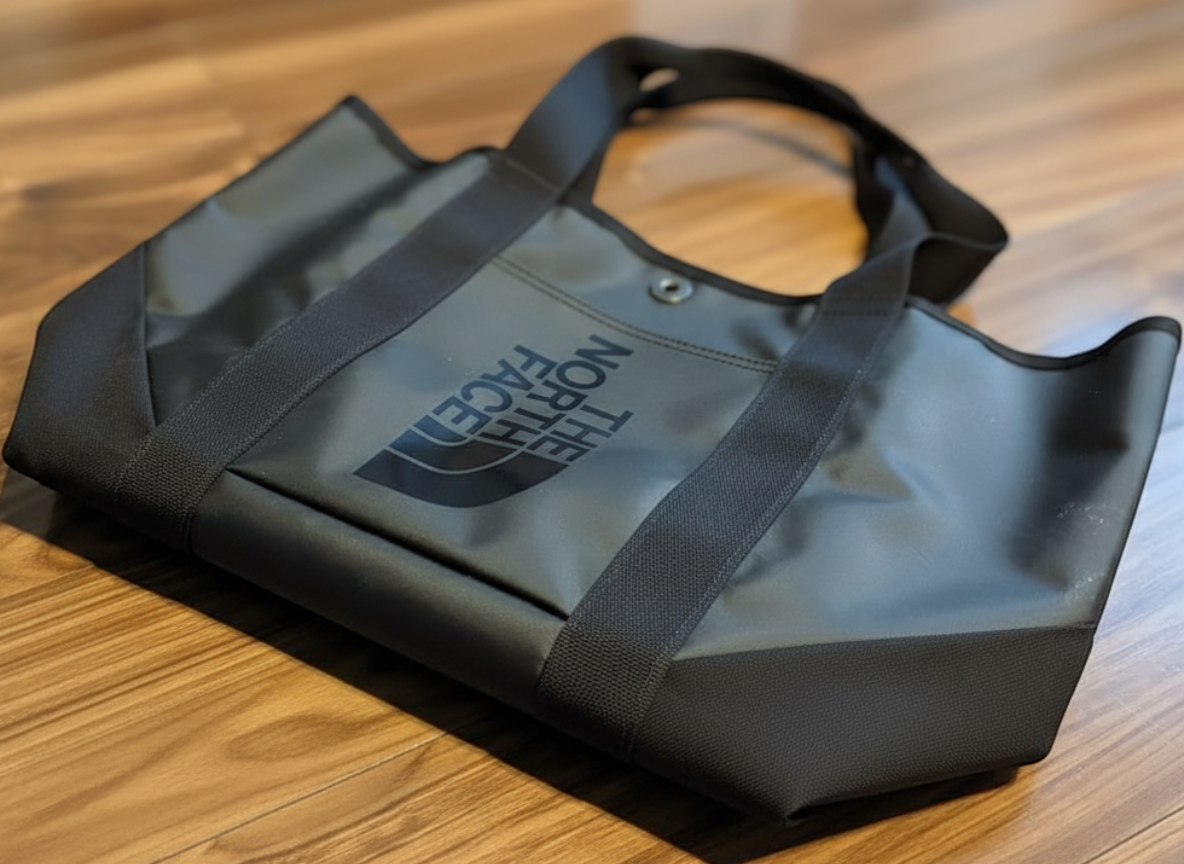
(original image)

(edited image)

If you want to give it a try, here's the code to reproduce the results above:

Try it now!

Additional Parameters

editWithAI.seed

If you make several calls to the Image Editing API with the same image and prompt, you will notice that it will generate a different edited image image every time.

In order to reduce the randomness, you can set a fixed value for the seed that the API's random generator will use. The value of the argument editWithAI.seed can be any positive integer.

If you provide a value for editWithAI.seed, then the API should produce similar-looking outputs for the same image and prompt.

Last updated

Was this helpful?